SBIR Connect turns a two-sided market — companies that want to acquire SBIR technology and companies that want to sell theirs — into a single workflow Bill & Ted can run from one screen. This is the operator's guide.
Live at sbir.porb.devPhase 4 — all 5 waves shippedLast updated 2026-05-23
The big picture
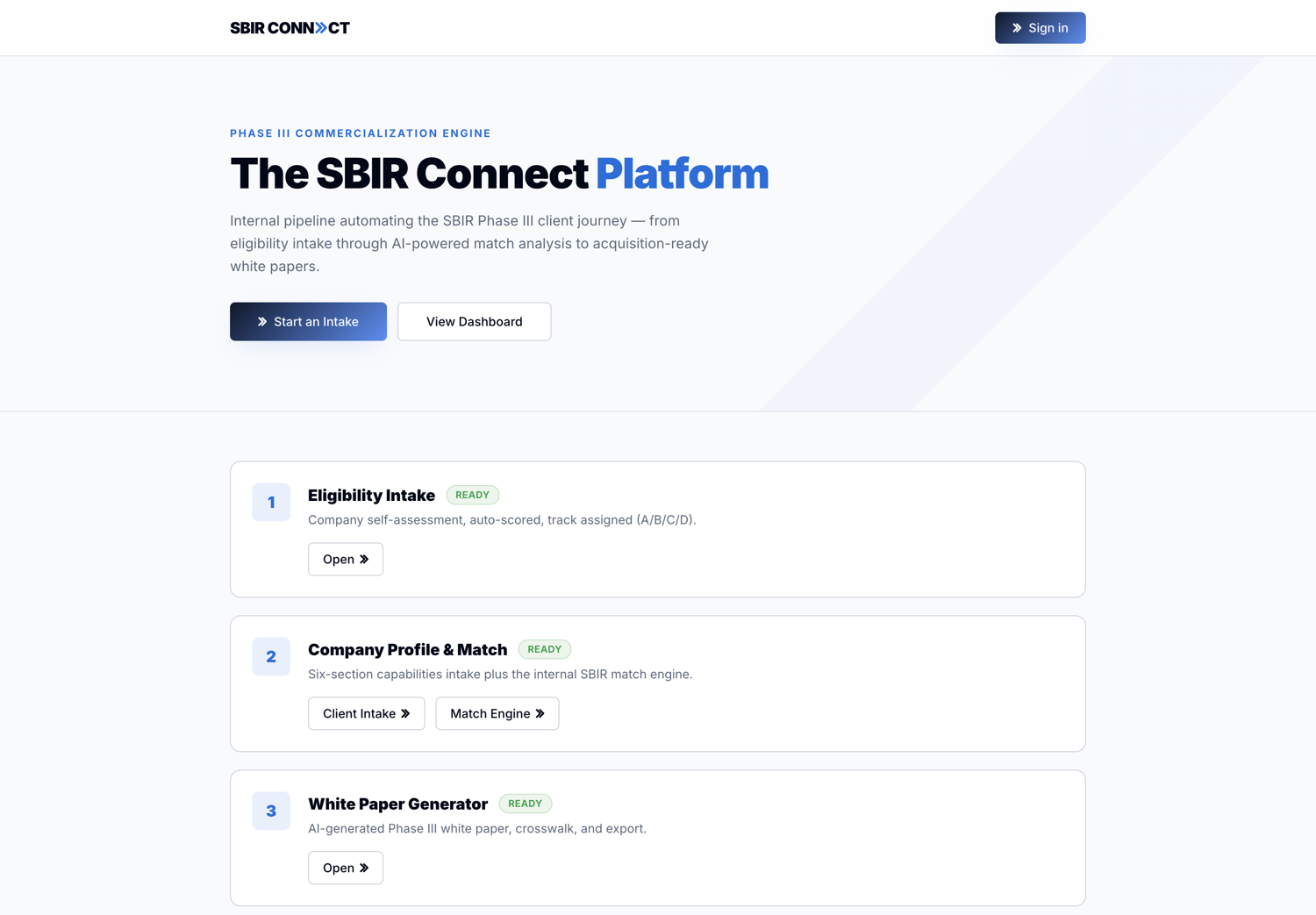
sbir.porb.dev
The public landing page at sbir.porb.dev. The platform exposes three stages externally: Eligibility Intake, Profile + Match, and White Paper Generator.
SBIR Connect is built around one observation: every SBIR award has a long second act after the federal contract ends, and almost no one is brokering that second act systematically. Companies that need certified SBIR technology to satisfy a Phase III procurement requirement can't easily find sellers, and companies sitting on dormant SBIR IP have no clean channel to monetize it. Bill & Ted bridge that gap; this platform is the operating system.
Three core ideas drive the whole product:
Two-sided intake. Buyers (Track A) and sellers (Track B) submit their needs through the same intake flow. The system knows which side they're on and routes the workflow accordingly.
Broker-mediated matching. The platform proposes matches across the entire candidate pool, but the broker is the only party who sees both sides in full. Customers see anonymized previews; brokers manage the introduction.
Federal-data verified. Every company in the system can be cross-referenced against SAM.gov, USASpending, and the SBIR.gov bulk awards database. A "Verified by Federal" badge on a match means the system confirmed the counterparty's SBIR history matches their claim.
Customers self-identify into one of four tracks at intake. The labels and descriptions below are the exact wording shown on the Stage 1 track-selection screen:
Track
Label
Customer description
What the broker does
A
Acquire SBIR Technology
"I want to purchase existing SBIR tech under a Phase III sole-source contract"
Run matching engine against marketplace listings + Track B intakes. Anonymized intros.
B
Commercialize SBIR
"I have SBIR award(s) and want to commercialize into federal market"
Auto-creates a draft marketplace listing; broker reviews + publishes.
C
Win Phase I/II
"I need help winning my first SBIR/STTR award"
Advisory work — proposal coaching, agency targeting. No matchable inventory.
D
Strategic Advisory
"I need positioning and go-to-market strategy for federal contracting"
Broker-led consulting engagement. Not tied to the matching engine.
Track A — Acquirers
Demand side: companies looking to acquire certified SBIR tech, typically to satisfy a Phase III pull-through.
Defense prime with a sole-source procurement need
Federal contractor scaling via tech acquisition
Acquisition-minded company absorbing capabilities
B&T
Brokers
↔
Anonymized matching
Track B — Commercializers
Supply side: SBIR award holders who want to commercialize their tech — either by licensing, sale, or finding a federal buyer.
Phase II winner sitting on dormant tech
Founder exiting an SBIR-rich portfolio
Company pivoting and willing to spin out IP
Tracks A and B are the two-sided market. Tracks C and D are advisory engagements: the intake form accepts them and the pipeline page shows them with their own color tint, but there is no auto-matching, no auto-listing creation, and no specialized broker UI for them. They land in the pipeline like any other intake; the broker manages the engagement manually using the standard Companies / Notes / Deals tools. By design, advisory engagements don't need automation — the broker IS the workflow.
The brokers (Bill & Ted) sit between the two sides. They see everything; the customers see only what they need to see. The platform enforces this separation rigorously — not just in the UI, but in the database (Row-Level Security) and the API layer (anonymization at the response boundary).
Key principle
Customers never see counterparty identities. Not the company name, not the contract number, not anything that lets them route around the broker. This is enforced at three layers: database RLS, API response anonymization, and UI templating. It's the product's core promise.
Roles & access
Every user account has a role. Role determines which URL paths a user can reach, which data they can read, and which actions they can take.
Junior brokers, contractors helping with deal flow
/admin/*
Almost everything — CRM, deals, listings (create / edit / pause), outreach drafts. Cannot delete listings or change tenant settings.
client
Track A buyers and Track B sellers
/portal/*
Their own intakes only. See anonymized matches. Cannot reach /admin/* paths — the proxy bounces them.
viewer
Auditors, observers, investors with read-only dashboards
/admin/* (read-only)
Read the Dashboard, Pipeline, Companies, Listings, Deals & Inventory. A “Read-only” badge shows in the header and every create / edit / delete control is hidden. Cannot open Contacts, internal broker notes, or the company Timeline, and cannot run intake / matching / white-papers.
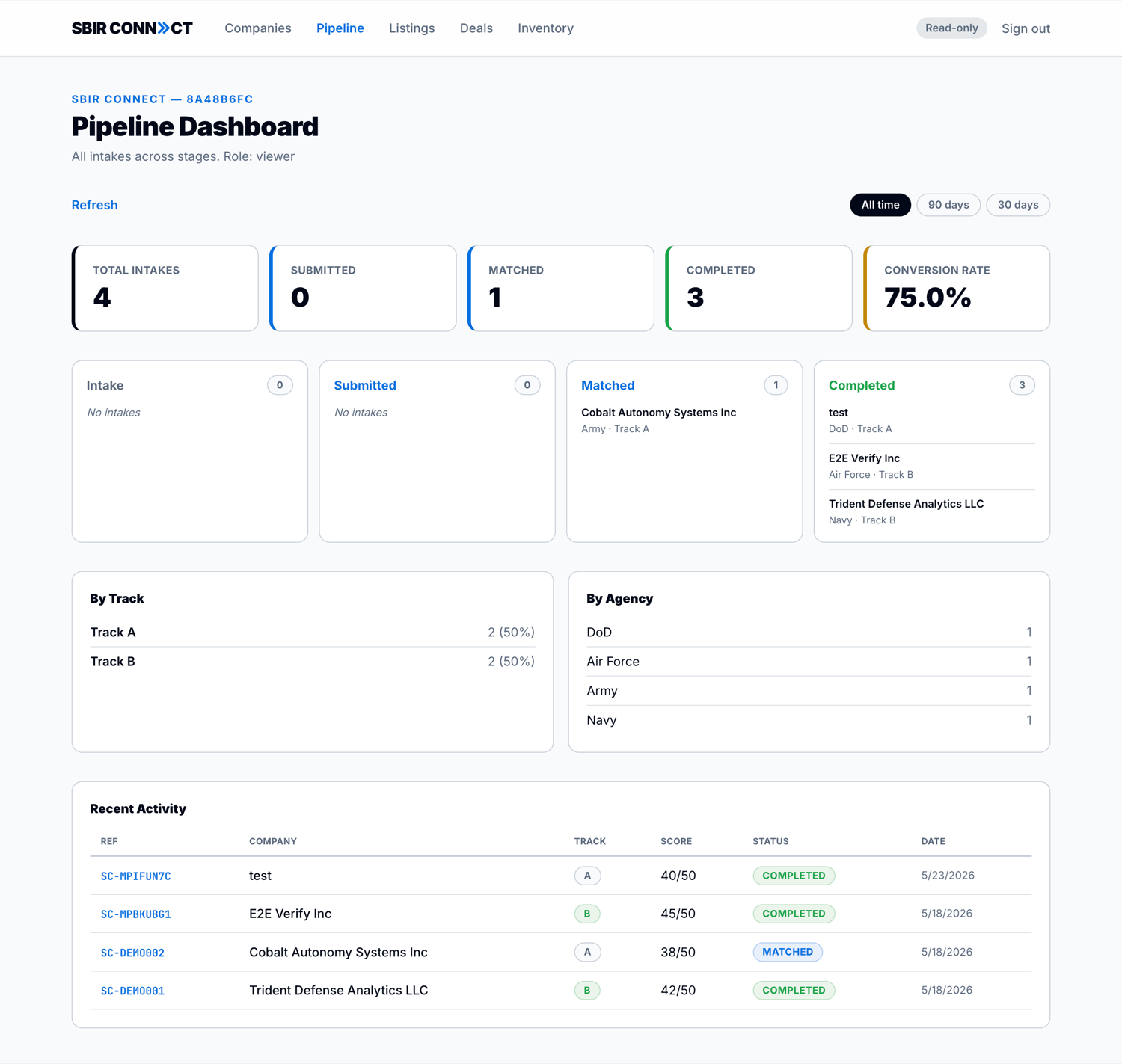
sbir.porb.dev/admin/pipeline · signed in as viewer
The same Pipeline dashboard seen by a viewer. Note the “Read-only” badge in the header, the absence of Contacts from the nav, and that the only toolbar action is Refresh — New Intake, Contacts, and Export are all hidden. The data is fully readable; nothing is editable.
A typical broker day
If you're Bill or Ted opening the laptop in the morning, this is the rough sequence the platform expects:
Check the pipeline for new intakes.
Open /admin/pipeline. Any intake submitted overnight appears in the "new" column. Track A and Track B are both there; the SBIR badge on each card tells you the customer's federal history at a glance.
Triage each new intake.
Click into the intake. For Track A, scroll to the auto-generated matches — these are the candidates the matching engine surfaced from the marketplace + Track B intake pool. For Track B, the system has already auto-created a draft marketplace listing from the seller's intake data; review it, edit if needed, then flip it to active.
Work the deal pipeline.
Open /admin/deals. Every match the system created produces a deal row in reviewed status. Decide which to introduce; use the "Generate outreach email" button to draft a warm intro the broker can send from their own inbox. Transition the deal to introduced when sent.
Update active deals.
For deals already in flight, log conversation notes in the broker_notes field and transition statuses as things move: introduced → under_discussion → closed_won / closed_lost.
Prospect dormant SBIR awards (weekly cadence).
Open /admin/inventory. There are roughly 14,196 dormant SBIR awards in the system (9,611 Phase I + 4,585 Phase II) that are over a decade old with no recent follow-on activity — candidates whose owners might be willing to sell. Mark a handful as researched, reach out to interesting ones, and when you acquire one, click "Convert to listing" to put it on the marketplace.
Maintain the CRM.
As conversations happen, add notes to /admin/companies, log meetings under /admin/contacts. The CRM is what compounds over time — every company you've ever talked to lives here with their SBIR badge and federal $ totals visible.
The admin shell
Everything brokers do lives under /admin/*. The left navigation is consistent across every page:
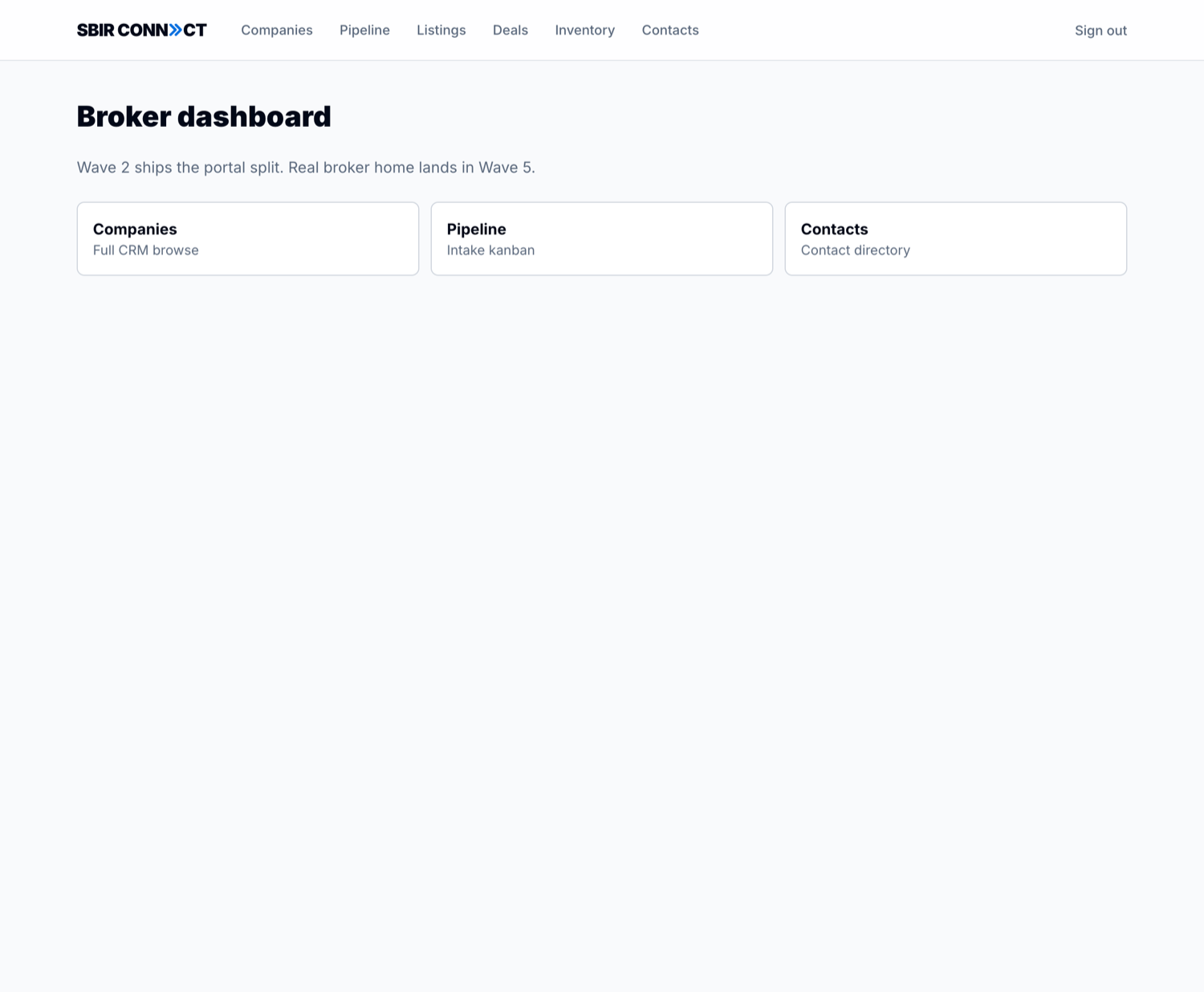
sbir.porb.dev/admin
The current /admin landing — a broker dashboard with quick-link cards. The page header copy is being updated as part of in-flight cleanup; see Currently in development.
The nav is a flat list of six destinations in this order: Companies · Pipeline · Listings · Deals · Inventory · Contacts. The grouping in your head is:
CRM — Companies, Contacts, Pipeline. Institutional memory and intake triage.
The /admin landing today is a simple broker dashboard with quick-link cards to Companies, Pipeline, and Contacts.
CRM: companies & contacts
The CRM is the institutional memory of the brokerage. Every company you've ever interacted with — buyer prospect, seller, dormant-IP holder, dead lead — lives here with their full federal profile, SBIR history, and conversation log.
Companies list
Open /admin/companies. Each row shows the company name, primary contact, engagement status, and — new in Phase 4 — their SBIR badge and Federal $ total.
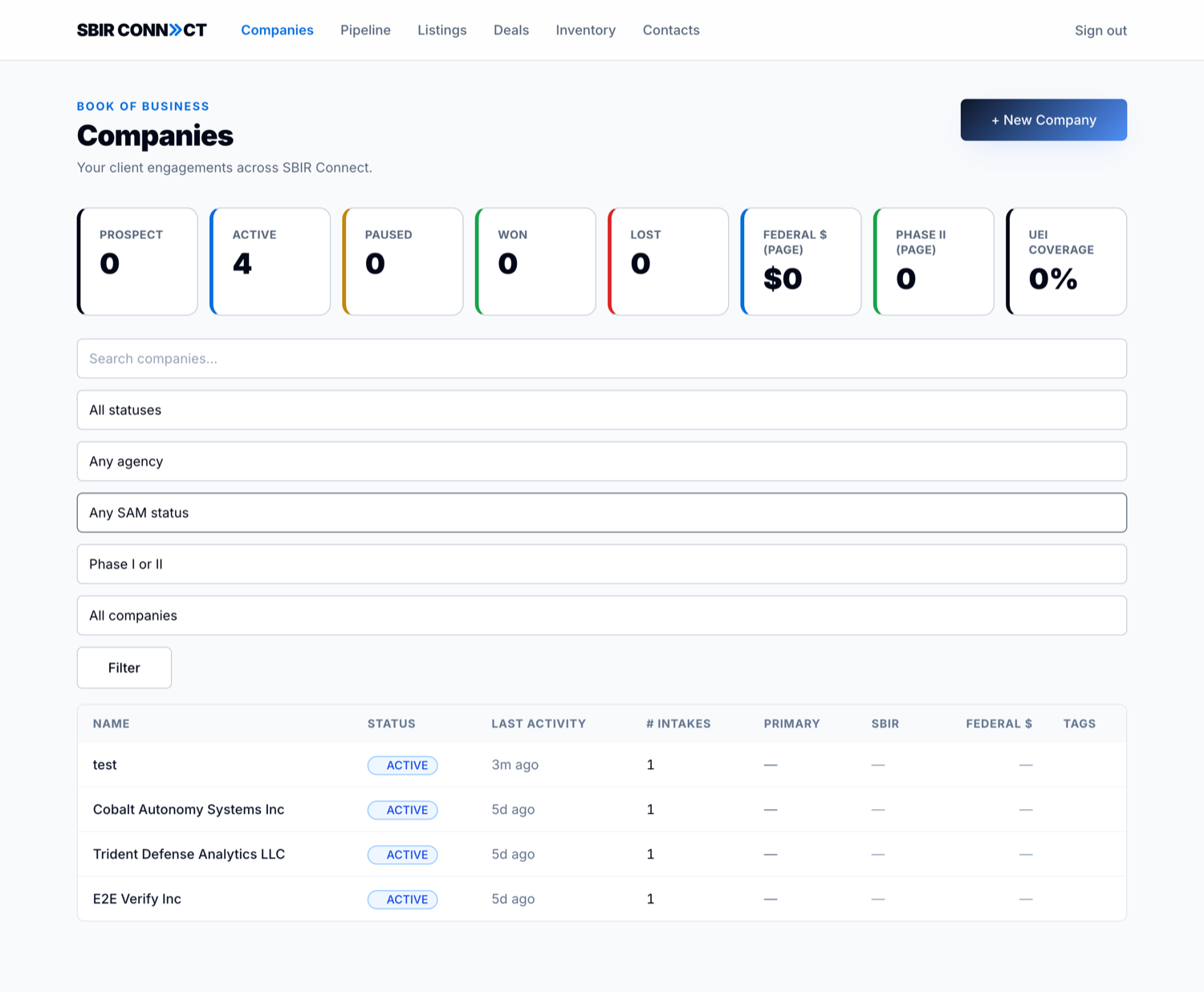
sbir.porb.dev/admin/companies
Companies list with the 8-card KPI strip (Prospect / Active / Paused / Won / Lost / Federal $ / Phase II / UEI coverage) and the filter bar.
Click any company name to open its detail page — a tabbed view of everything the brokerage knows about them.
sbir.porb.dev/admin/companies/…
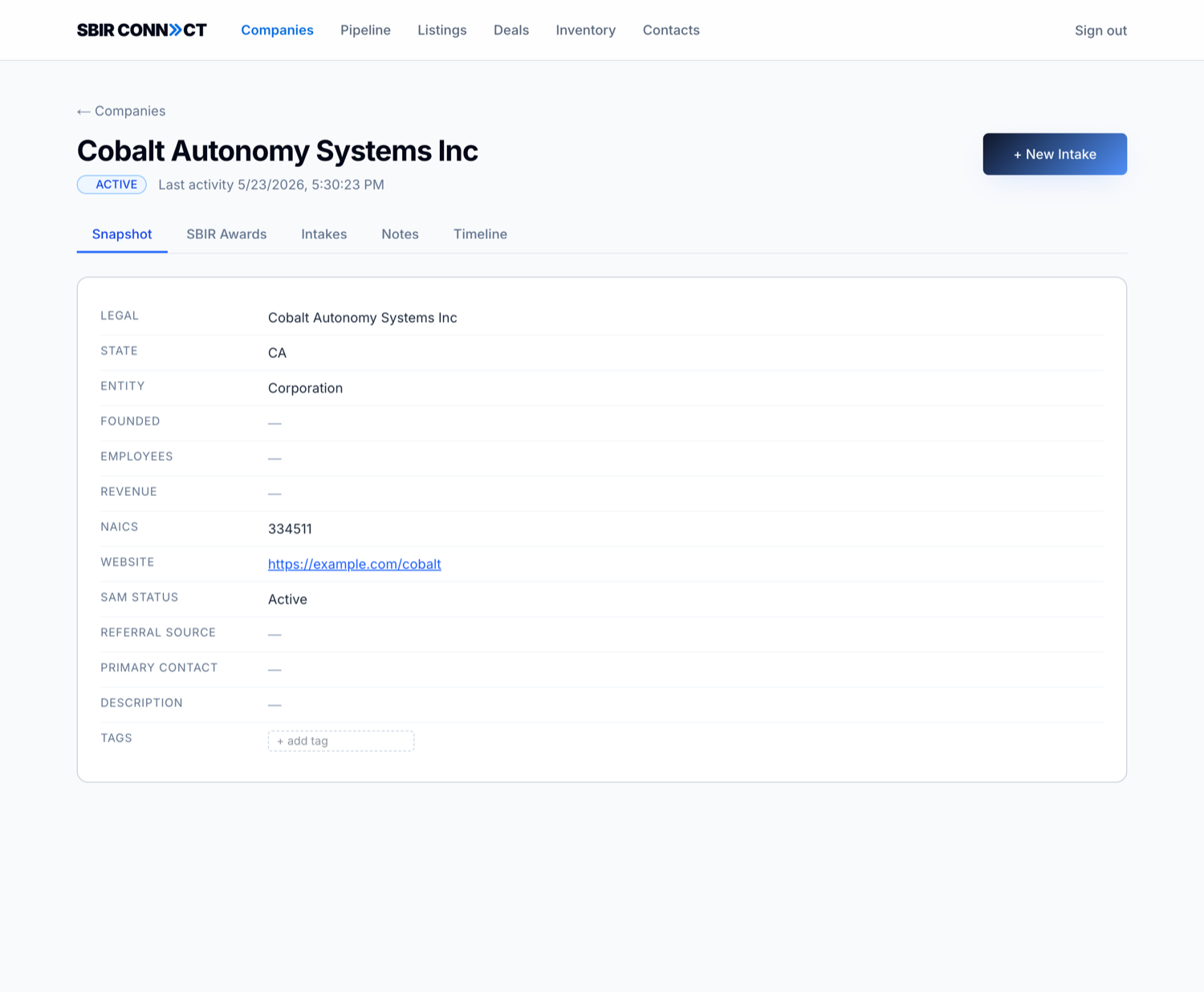
A company detail page. Five tabs organize the record: Snapshot (shown — legal/entity/NAICS/SAM status, website, tags), SBIR Awards (Phase I/II history joined on UEI), Intakes, Notes (internal broker commentary), and Timeline (activity log). A read-only viewer sees only Snapshot, SBIR Awards & Intakes — Notes and Timeline are operator-only.
Column
What it means
Name
The company's legal name. Click to open the detail page.
Status
prospect · active · paused · won · lost. Reflects engagement state, not deal state.
Last activity
Most recent touch on this company — note added, intake submitted, tag changed. Drives the default sort (newest first).
Intakes
How many intakes this company has ever submitted. Helpful for spotting repeat customers.
Primary
The contact tagged as primary on this company. Editable on the detail page.
SBIR
Phase II count badge when the company has at least one Phase II win. Sourced from the SBIR.gov bulk dataset, joined on UEI.
Federal $
Total federal SBIR obligations across all the company's awards.
Filters & KPIs
The top of the page has a filter bar with six controls: free-text search, engagement status, agency quick-filter (DoD / DARPA / NASA / etc.), SAM status, has Phase II toggle, and needs enrichment toggle (companies missing a UEI). Below it, an 8-card KPI strip:
KPI
What it counts
Prospect / Active / Paused / Won / Lost
Engagement-status counts across the entire tenant (not page-scoped).
Federal $ (page)
Sum of SBIR federal obligations for companies on the current page. The "(page)" suffix is intentional — applying a filter changes this number to match what you're looking at.
Phase II (page)
Count of companies on the current page with at least one Phase II win.
UEI coverage
Percentage of companies on the current page that have a UEI attached. Drives the "how enriched is my CRM" signal.
The page-scoped semantics on the last three are deliberate: they stay coherent with whatever filter you've applied. Filter to "DoD only" and Federal $ shows you DoD total spending across your CRM.
Tip
The "Needs enrichment" filter surfaces companies you've added manually without federal-data verification. Open each and re-pick from the combobox to attach the UEI / SAM data — it unlocks the SBIR badge and Federal $ columns for that company.
Adding a company
Click "+ New company" on the list page. The form has two paths:
The recommended path: Start typing in the "Company name" field. The combobox queries SAM and USASpending in parallel and shows verified federal entities. Pick one and the form auto-fills UEI, DUNS, CAGE, parent UEI, federal obligations total, and SBIR history.
Manual entry: Type the full name and ignore the dropdown. You can fill in federal IDs later via the detail page. The company gets flagged as "needs enrichment" until you do.
If the company you're picking already exists in your CRM, the combobox shows a "Already in your CRM → open existing" warning instead of letting you create a duplicate. Click through to the existing company instead.
Contacts & PI links
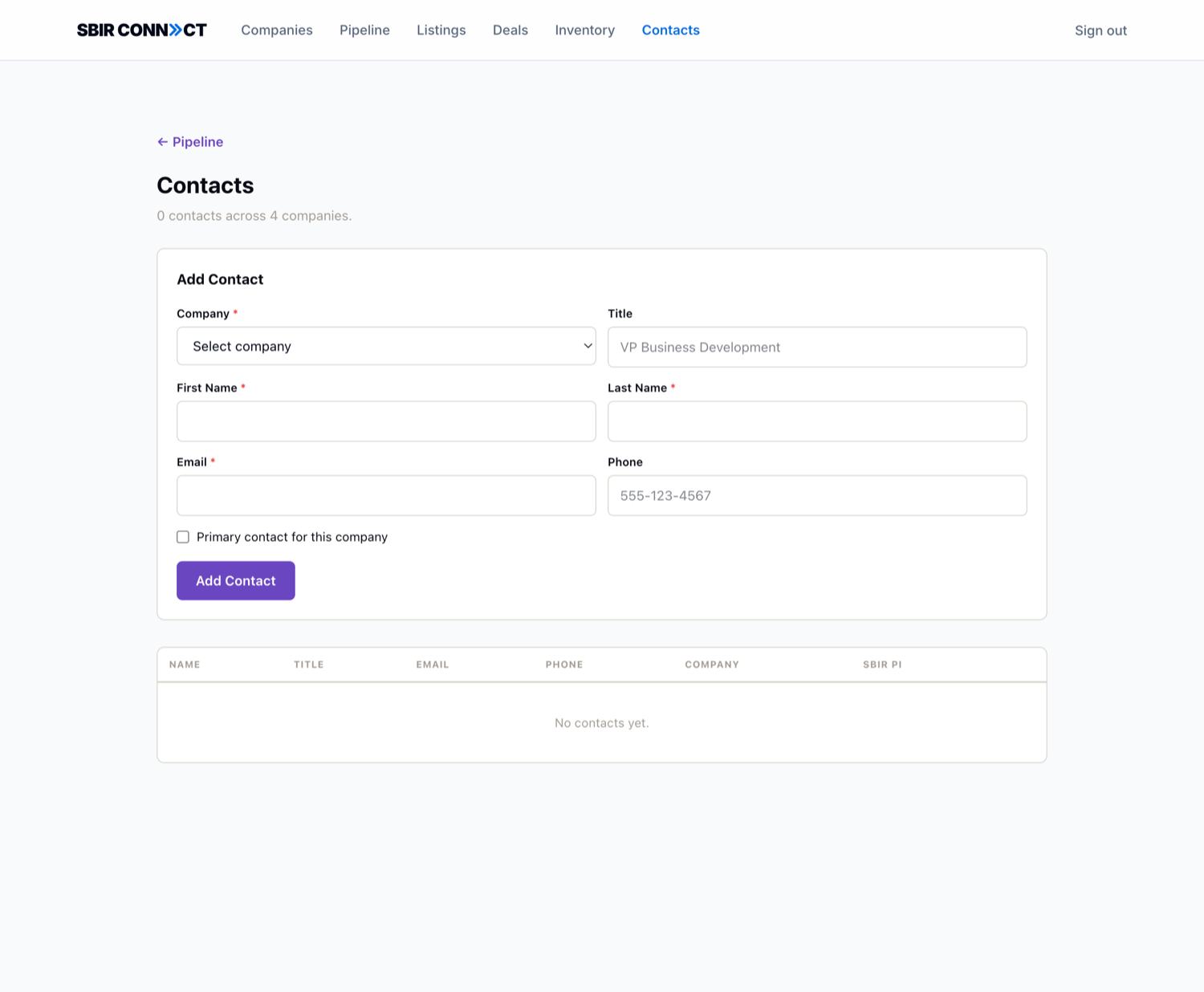
Open /admin/contacts. Each contact row shows name, email, role, the company they're attached to, and — new in Phase 4 — a PI on N awards badge when their email matches a Principal Investigator on a SBIR award in the system.
sbir.porb.dev/admin/contacts
The contacts directory. The "PI on N awards" badge appears next to contacts whose email exactly matches a Principal Investigator email in the SBIR.gov bulk awards data — auto-materialized by the biweekly ingest.
The PI link is auto-materialized by the biweekly ingest (1st and 15th of every month at 06:00 UTC). The system normalizes email addresses (lower(trim(email))) and exact-matches them against the pi_email column on the 219,501+ SBIR awards. If a contact's email happens to be the PI on three awards, the badge shows "PI on 3 awards" — click through to see which awards.
Why this matters
When prospecting dormant SBIR awards, the PI is often the person who'd negotiate the sale (or knows who would). Pre-existing PI matches in your CRM tell you which dormant awards you already have a warm lead on.
Pipeline kanban
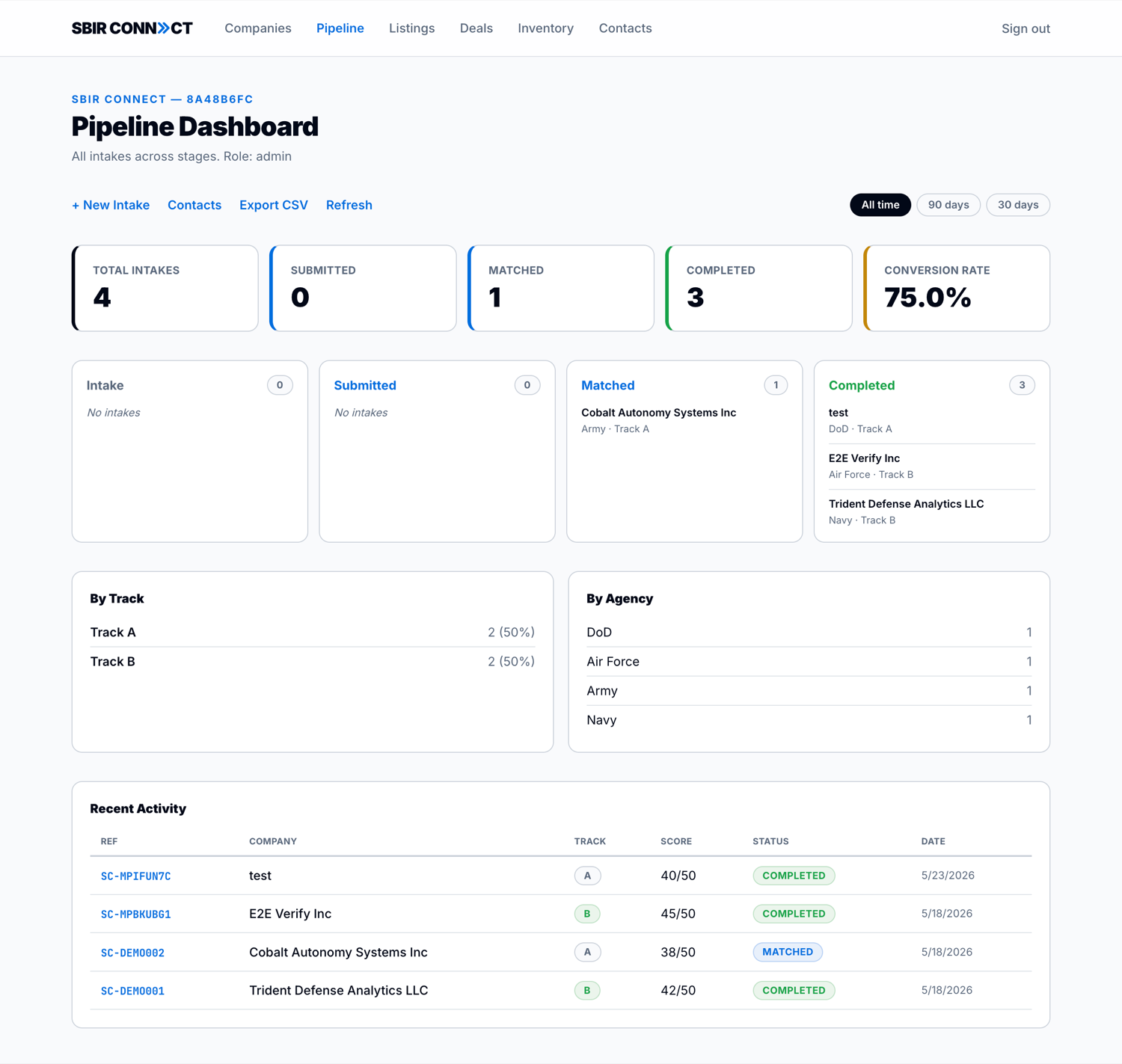
Open /admin/pipeline. This is the kanban view of every intake in flight, grouped by status (new → reviewing → matched → in_discussion → closed). Each card shows the company, the track (A or B), the agency they're targeting, and an SBIR badge if the company has federal history.
sbir.porb.dev/admin/pipeline
Pipeline dashboard. Top: conversion metrics. Bottom: stage columns with one card per in-flight intake. Supports ?range=30|90 for time-window filtering and CSV export.
Drag-and-drop is not enabled in this version; transition statuses from the intake detail page or via the inline transition buttons.
Marketplace listings
A listing is a piece of SBIR-certified technology for sale. Listings live in the sbir_topics table with source='marketplace' and a listing_status that tracks where in the sales lifecycle each one is.
Browse listings
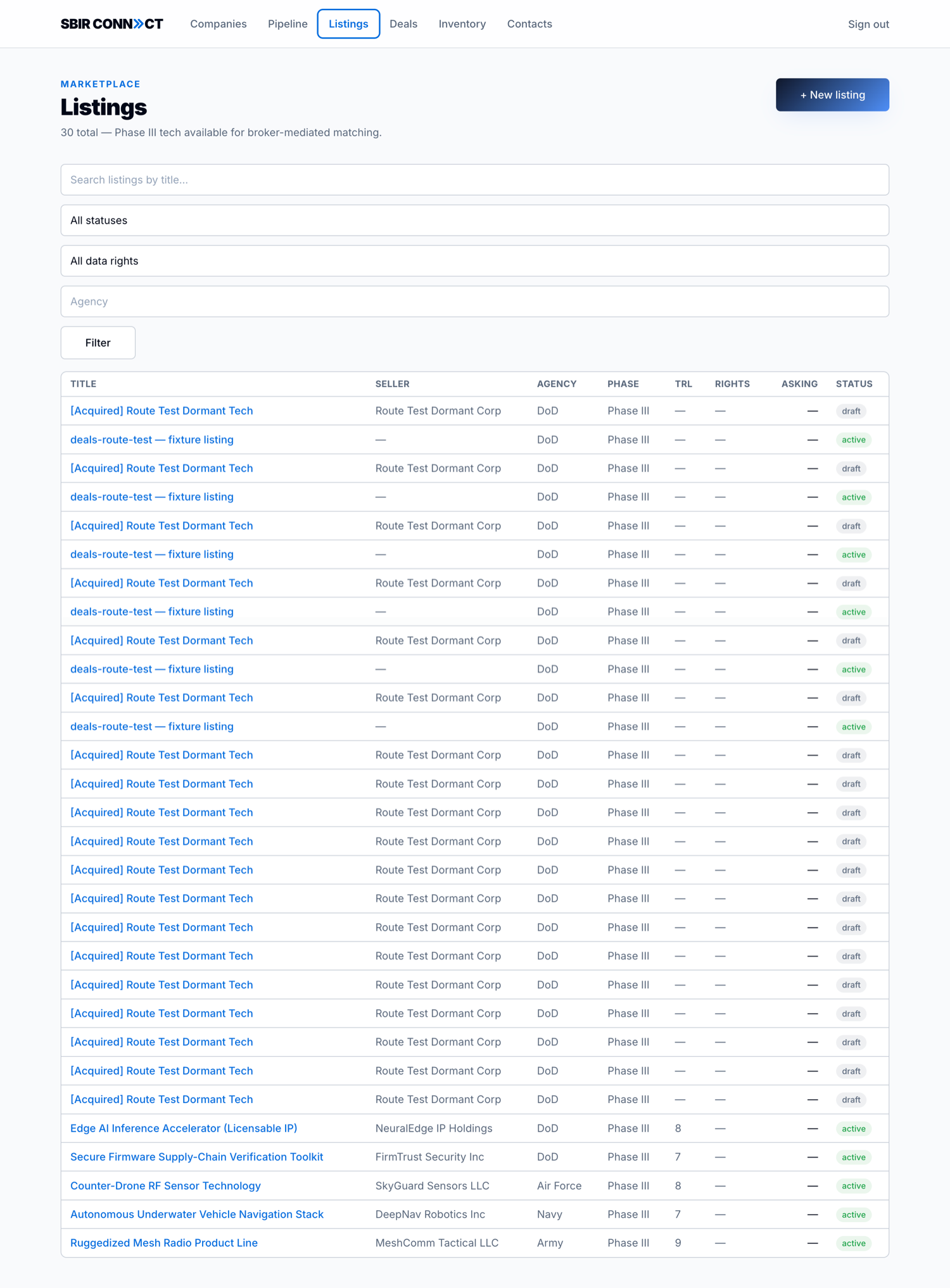
Open /admin/listings. The table shows every listing in your tenant with filters by status, agency, data rights, and free-text search.
sbir.porb.dev/admin/listings
Marketplace listings browse. Status chips (active / paused / draft / sold / withdrawn) show the lifecycle stage. The integration-test fixtures ("Route Test Dormant Tech") appearing in this view will not be in the production dataset once the marketplace is fully populated.
Where listings come from
Scraped from Ted's marketplace site (thesbirtechmarketplace.com) — Ted's existing site has ~487 listings; we sync them into our DB so they become matchable candidates for incoming intakes.
Manually added by brokers via the "+ New listing" form.
Auto-created from Track B intakes — when a seller submits a Track B intake, the system creates a draft listing pre-filled from their intake data, ready for the broker to review.
Converted from dormant inventory — when you acquire a dormant SBIR award (see Inventory section), the "Convert to listing" button creates a draft listing from the award metadata.
Add a listing manually
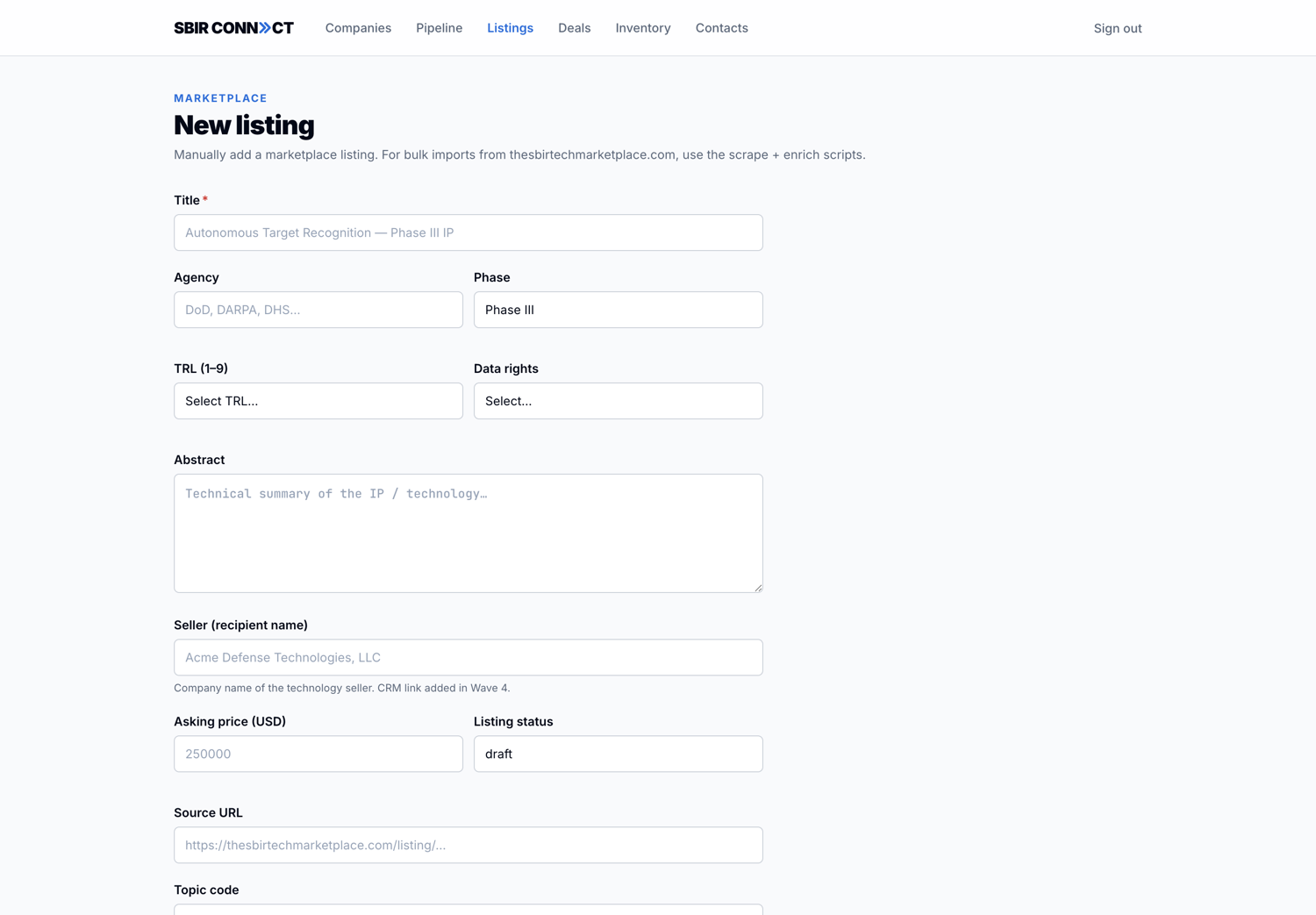
Click "+ New listing". The form fields:
sbir.porb.dev/admin/listings/new
The manual listing entry form. Title is the only required field. The platform pre-fills Phase to "Phase III" and listing status to "draft".
Field
Required?
Notes
Title
Yes
The headline that buyers see. Be descriptive — "Autonomous Target Recognition — Phase III IP" beats "TR-2017-44A".
Agency
No
The originating SBIR-funding agency: DoD, DARPA, NASA, DHS, etc.
$0 is a valid value (e.g., government-purpose-only IP licensed at no cost).
Listing status
Defaults to draft
Use draft until ready to publish.
Source URL
No
Link to Ted's marketplace listing or wherever the original ad lives.
Listing notes
No
Broker-private — never shown to customers.
Listing detail page
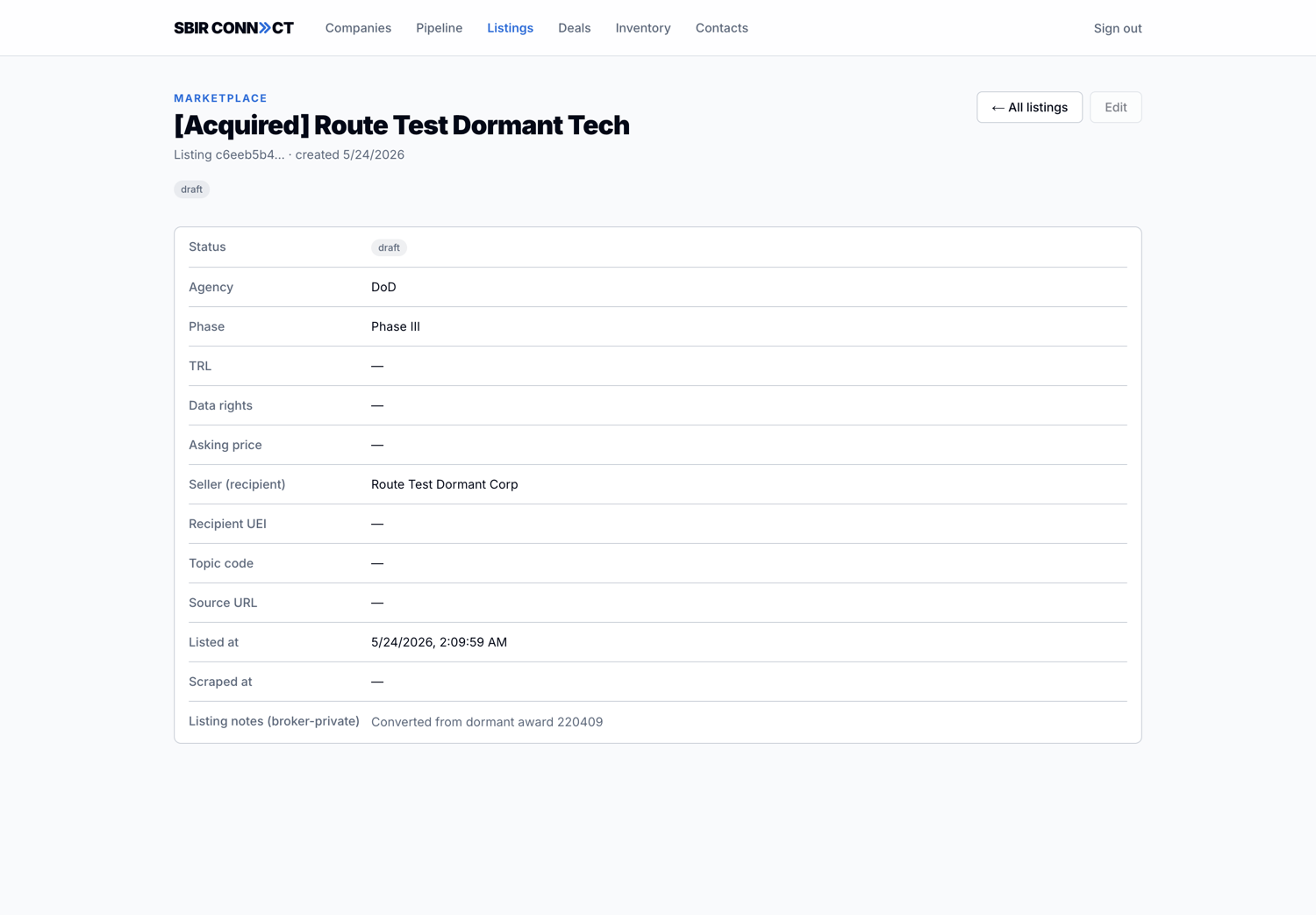
Click any title from the browse table to open the detail page. It shows every field on the row, including the (broker-private) listing notes. Edit + delete actions live in the top right.
sbir.porb.dev/admin/listings/[id]
The listing detail view. The "Listing notes (broker-private)" field is the only one customers will never see — use it for asking-price flexibility, seller motivation, anything sensitive.
Listing lifecycle
A listing moves through five statuses:
draft — Created but not visible to the matching engine yet. Use this for work-in-progress entries or seller intakes awaiting broker review.
active — Visible to the matching engine. New Track A intakes will see this as a candidate.
paused — Hidden from new matches but preserved (e.g., seller is mulling whether to keep selling). Existing deals tied to this listing are unaffected.
sold — A deal closed. Historical record.
withdrawn — Seller pulled the listing or broker soft-deleted it. Not visible to matching, kept for audit.
Only active and paused listings are visible as match candidates — but only active ones produce new matches. paused exists for the "don't show this to new buyers, but don't break existing deals" case.
Delete behavior
Listings cannot be hard-deleted. The DELETE action on a listing soft-deletes it by setting listing_status='withdrawn'. The row stays in the DB for audit. Only admins can do this — analysts can pause but not withdraw.
Dormant SBIR prospecting
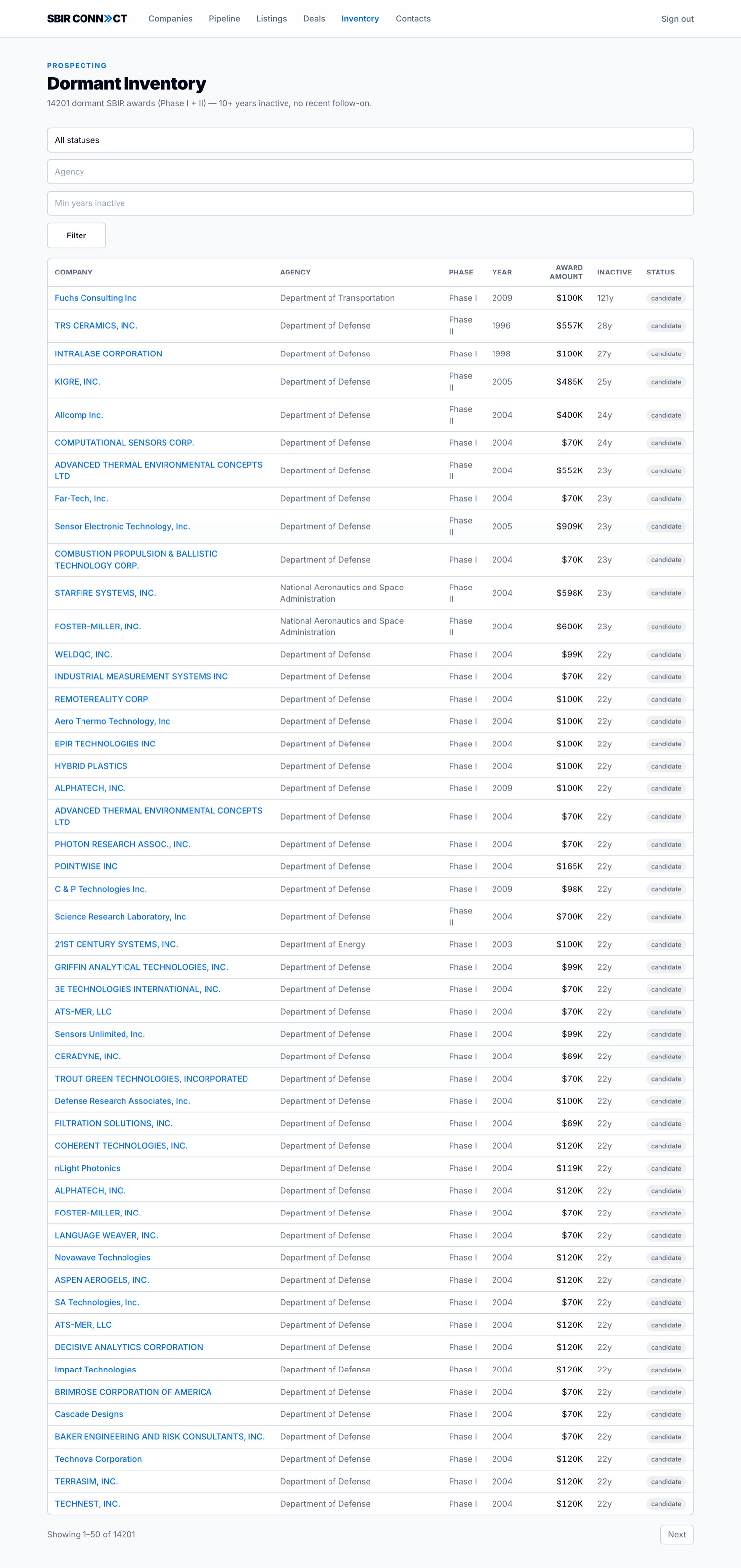
Open /admin/inventory. This is the prospecting dashboard for Bill & Ted's actual business: finding 10-year-old SBIR awards (Phase I or Phase II) whose owners haven't done anything with the contract, and buying the contract from them.
Why both Phase I and Phase II
Bill & Ted's model buys the SBIR contract, not the underlying technology. A Phase I award holder with no Phase II follow-on is just as acquirable as a Phase II — the new owner can commercialize directly to Phase III on the bought contract, regardless of where the original development stopped. Phase I contracts are typically cheaper to acquire ($150K–$300K original award size vs. $1M–$1.5M for Phase II), so they're the lower-cost slice of the same inventory.
sbir.porb.dev/admin/inventory
The dormant prospecting dashboard. Each row is a real award >10 years inactive — Fuchs Consulting Inc (Phase I, DOT, 2009, $100K), TRS Ceramics (Phase II, DoD, 1996, $557K, 28y inactive), Intralase Corporation (Phase I, 1998, $100K), KIGRE (Phase II, 2005, $485K), and so on. The Phase column lets you scan for cost-tier matches at a glance.
The system materializes a Postgres view called dormant_sbir_candidates from the 219,501 SBIR awards in the database. The criteria:
Phase I or Phase II award (the contract is what's sellable — Phase III is the destination, not a candidate)
Contract end date is over 10 years in the past
Has a UEI (so we can identify the recipient)
No other award under the same UEI in the last 5 years — i.e., the company has gone quiet on federal work
As of the latest ingest, this surfaces approximately 14,196 candidates (9,611 Phase I + 4,585 Phase II). They're sorted by oldest contract end date first (most dormant) by default.
Status workflow
Each candidate moves through this lifecycle:
candidate — untriaged.
The default state. The system surfaces it; you haven't looked at it yet.
researched — you've looked into it.
Mark this once you've done your homework: pulled the PI's contact info, checked if the company still exists, scoped whether the IP is interesting.
contacted — outreach sent.
You've emailed or called. Log the contact date in contacted_at and notes in the broker notes field.
declined — dead end.
The owner said no, or the company is defunct, or the IP turned out to be uninteresting. The row stays in the dashboard so you don't re-research it later.
acquired — you got it.
The owner agreed to sell. The system sets acquired_at and links the new marketplace listing via resulting_listing_id.
Converting a candidate to a listing
On any candidate detail page, once the status is set to acquired, click "Convert to listing". The system:
Creates a new sbir_topics row with source='marketplace', listing_status='draft', and pre-fills title ("[Acquired] <award title>"), agency, phase, and the original recipient name.
Sets the dormant candidate's resulting_listing_id to the new listing.
Emits an audit event: dormant.converted_to_listing.
You then open the new draft listing, fill in asking price + data rights + any additional context the broker negotiated, and flip it to active.
Notes survive re-ingests
Your dormant inventory notes are stored in dormant_inventory_candidates, a separate table from sbir_awards. When the biweekly ingest runs (TRUNCATE-then-INSERT on sbir_awards), the CASCADE wipes the inventory rows. If brokers start logging serious notes here, the next platform iteration should add an idempotent merge so inventory notes survive. Until then, treat the notes as working state, not historical record.
Deal flow
A deal is a tracked match between a buyer's intake and a sellable target (either a marketplace listing or a counterparty Track B intake). Open /admin/deals.
Deal pipeline
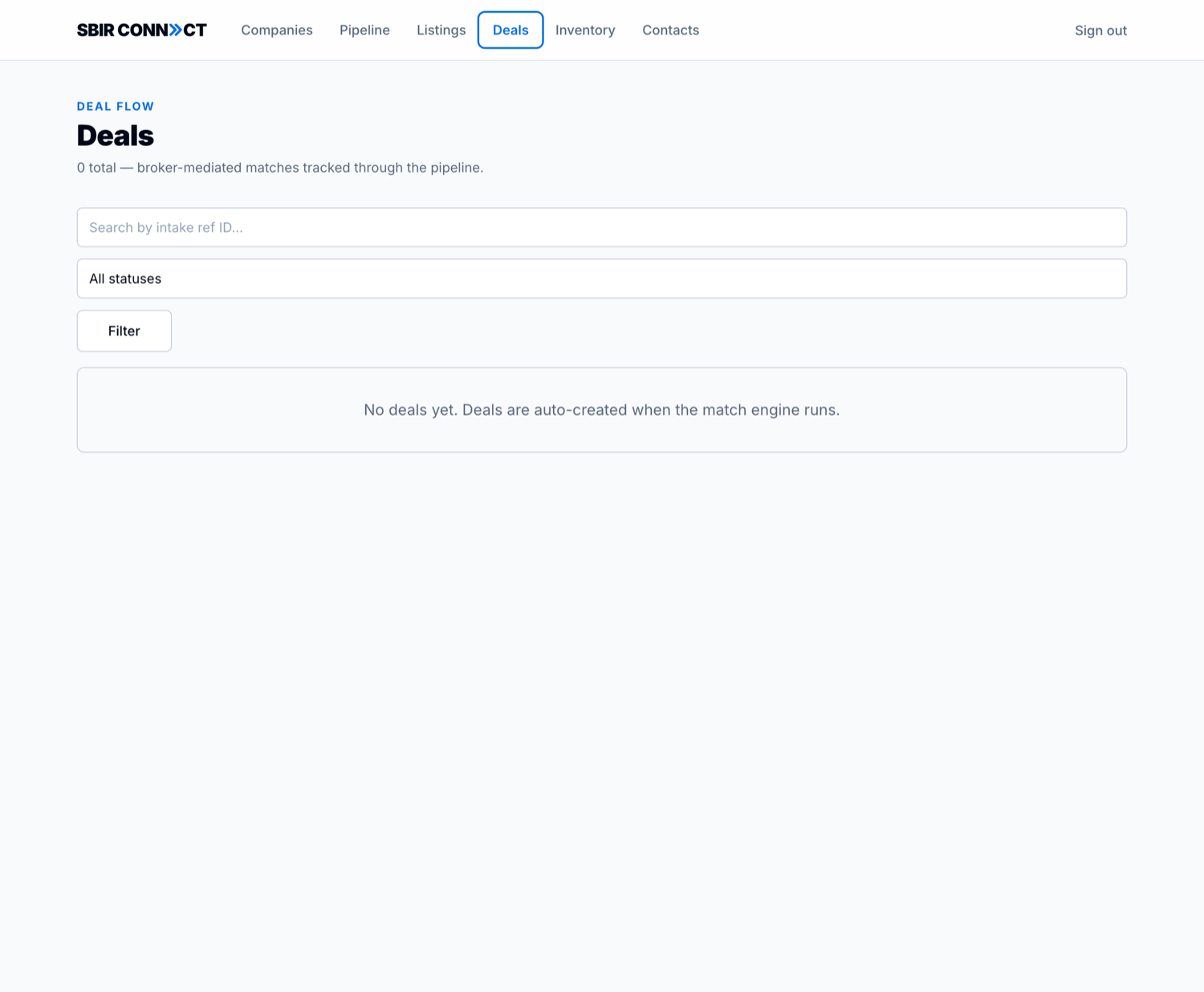
Deals are created automatically every time the matching engine produces a match for a Track A buyer. They start in reviewed status. Bill & Ted are the only people who see deals — customers see a simplified, anonymized version ("In review", "Introduced", "Closed") on their portal.
sbir.porb.dev/admin/deals
Deal pipeline. Each row drills into a detail page with broker notes editor, status transition buttons, and a "Generate outreach email" button.
Any of the above → closed_won / closed_lost / withdrawn (sets closed_at = NOW())
The closed states are terminal — the server will reject any PATCH that tries to transition a deal out of closed_won, closed_lost, or withdrawn. If you need to re-open a deal, create a new one referencing the same intake + target.
Broker notes
Every deal has a broker_notes field — free-form text that only brokers see. Use it for: conversation summaries, negotiation points, expected close timeline, names of decision-makers on either side. The notes editor lives inline on the deal detail page and saves on blur.
AI outreach drafts
On any deal detail page, click "Generate outreach email". A modal opens, fires a request to the AI-powered outreach generator, and returns a ready-to-send intro email with a subject line and ~150-word body. Copy each into Gmail/Outlook and send from your own inbox.
The prompt tells the model:
You are an SBIR brokerage operator introducing two companies.
One side wants to acquire SBIR-certified IP; the other has it.
Write warm-but-professional. Brief on each side's fit. Suggest a 30-minute discovery call.
Sign as the broker.
The model returns JSON with subject and body so the modal can render them in separate copy-to-clipboard fields. Each generation is independent — if you want a different draft, close and reopen the modal.
Tone tip
The default prompt produces a polite, neutral first-touch email. If the deal calls for something more aggressive (closing pressure) or more conservative (compliance-heavy intro), edit the body before sending. The model is the first draft, not the final word.
Track B intakes as counterparties
When a Track A buyer is matched against a Track B seller's intake (instead of a marketplace listing), the deal row's counterparty_intake_id is populated instead of listing_id. In the deal detail view, the counterparty side shows the Track B intake's company, capabilities, and target agency. The broker can also navigate to the Track B intake directly.
Track B-counterparty deals don't appear on the customer-facing portal yet — that's a planned cleanup item. Today, brokers see them in /admin/deals and manage them through the broker tools.
Federal data integration
The platform pulls from three federal data sources to verify every company that touches the system:
Source
What it provides
How we use it
SAM.gov Entity API
Active entity registration, UEI, CAGE, DUNS, NAICS codes, address, business type
Powers the company combobox autocomplete; verifies that a company is a real registered federal vendor.
USASpending.gov
Federal obligations totals, contract awards, recipient lookup by UEI / name
Powers the "Federal $" KPI on the companies list and the company detail page.
SBIR.gov bulk awards CSV
Every SBIR/STTR award since the program began — ~219,501 rows. Includes PI name, PI email, phase, agency, branch, topic code, award year, end date.
Refreshed every two weeks by a cron sidecar. Powers SBIR badges, dormant inventory view, PI link materialization.
The "Verified by Federal" badge
When a match between an intake and a candidate includes federal verification (the matching engine confirmed the candidate's claimed SBIR history against the bulk awards data), the match card displays a Verified by Federal chip. This is the strongest signal of legitimacy — the platform crossed-checked the federal record before showing the match.
Combobox autocomplete
The company picker on the intake flow and the "+ New company" form is a typeahead combobox. Type a partial company name and it queries SAM and USASpending in parallel, returning verified federal entities. Each result shows:
Legal name (and DBA if different)
State + entity type
UEI (the federal unique identifier)
An SAM verified chip if the entity is currently registered
An Already in your CRM chip if a company with this name or UEI already exists in your tenant — click to open the existing record instead of creating a duplicate.
Track A — buyer flow
A Track A customer is a company looking to acquire SBIR-certified technology under a Phase III sole-source contract. The intake is staged across four URLs; the customer moves through them in order.
Sign up or invited.
The customer receives an invitation from Bill or Ted, signs up via /login, and lands in their own customer portal at /portal.
sbir.porb.dev/login
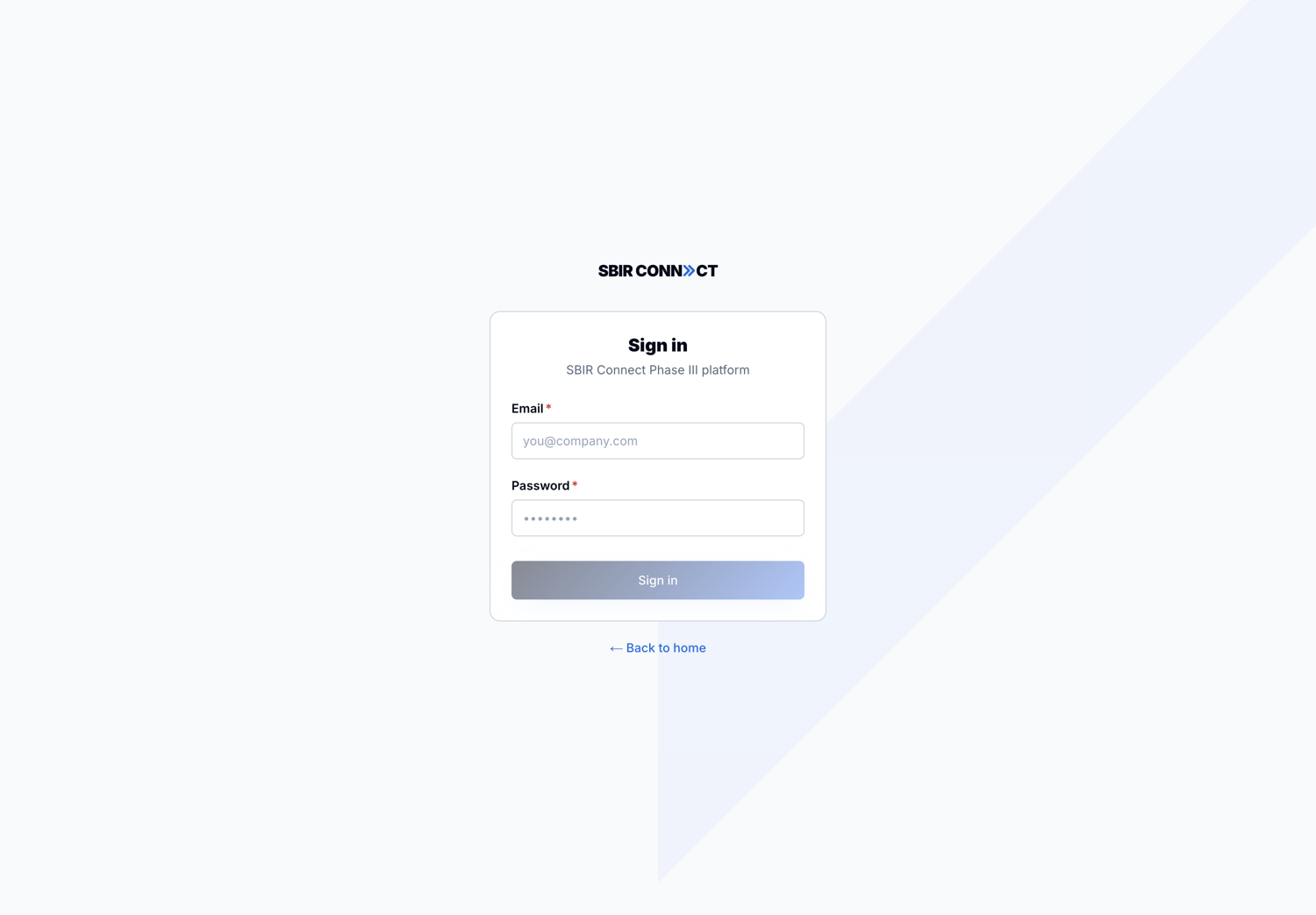
The shared login surface. After successful auth, the proxy routes the user to /admin or /portal based on their role.
Stage 1 — Company & track (/stage1).
sbir.porb.dev/stage1
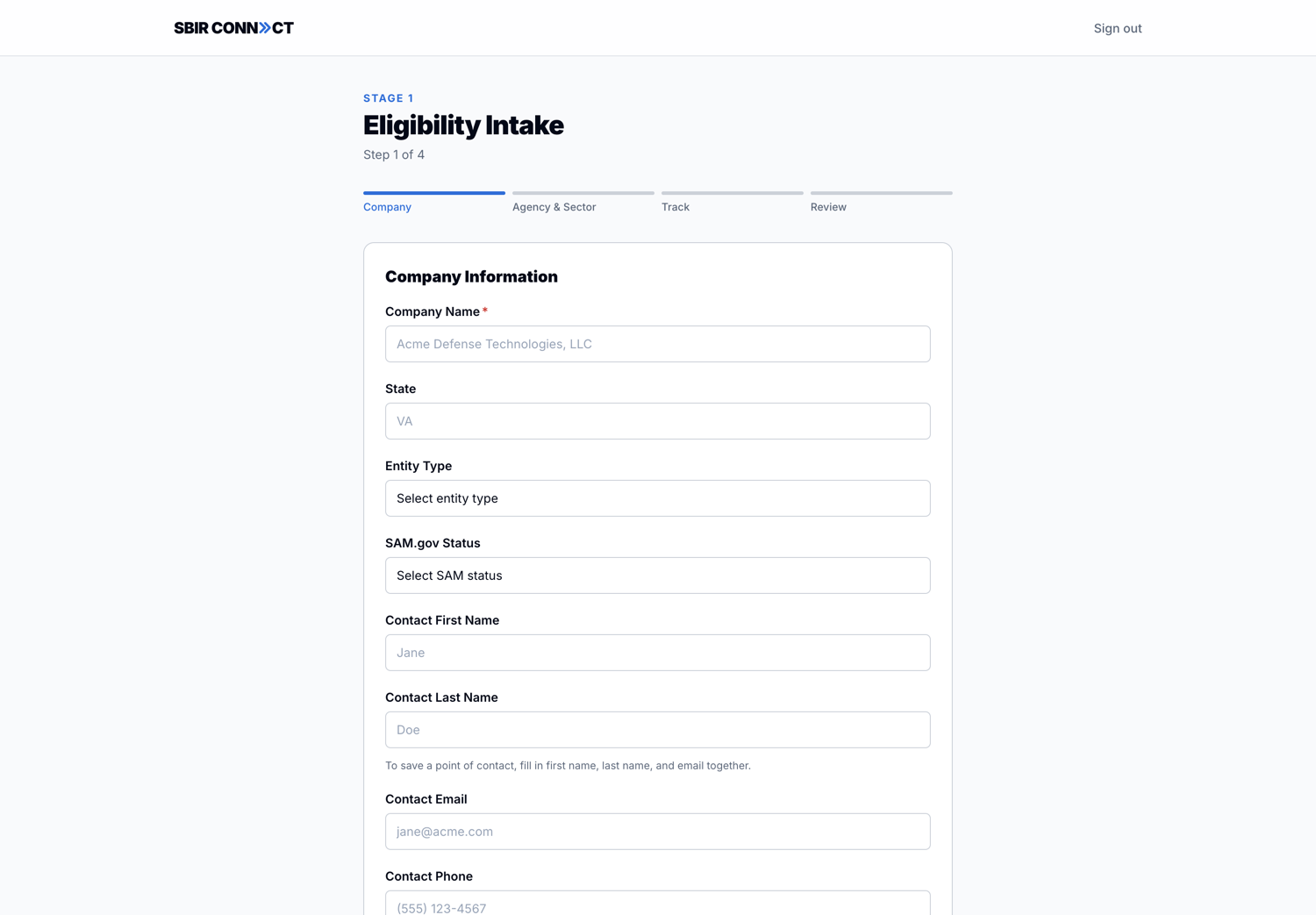
Stage 1, Step 1 of 4. The progress bar at the top shows the four-step sequence: Company → Agency & Sector → Track → Review. The TrackRecommendation banner (not visible here — only renders when the picked company has SBIR history) would appear at Step 3.
Four steps in a single page:
Company. Pick your company from the federal-verified combobox (SAM + USASpending). The form auto-fills state, entity type, SAM status, and federal IDs from the picked record. Primary contact fields (name, email, phone, title) live here too.
Agency & Sector. Target agency (DoD, DARPA, NASA, etc.), sector (defense / civilian / dual-use), budget range (under $500K up to $5M+).
Track. Pick A, B, C, or D. A TrackRecommendation banner appears here when the picked company has SBIR history — it suggests a track based on Phase I/II counts. Customer can accept or override.
Review. Summary of everything entered, with a profile-strength meter (0–80) and a low-profile warning if the score is below 60% of max.
Stage 2A — Company Capabilities (/stage2/intake?intake_id=...).
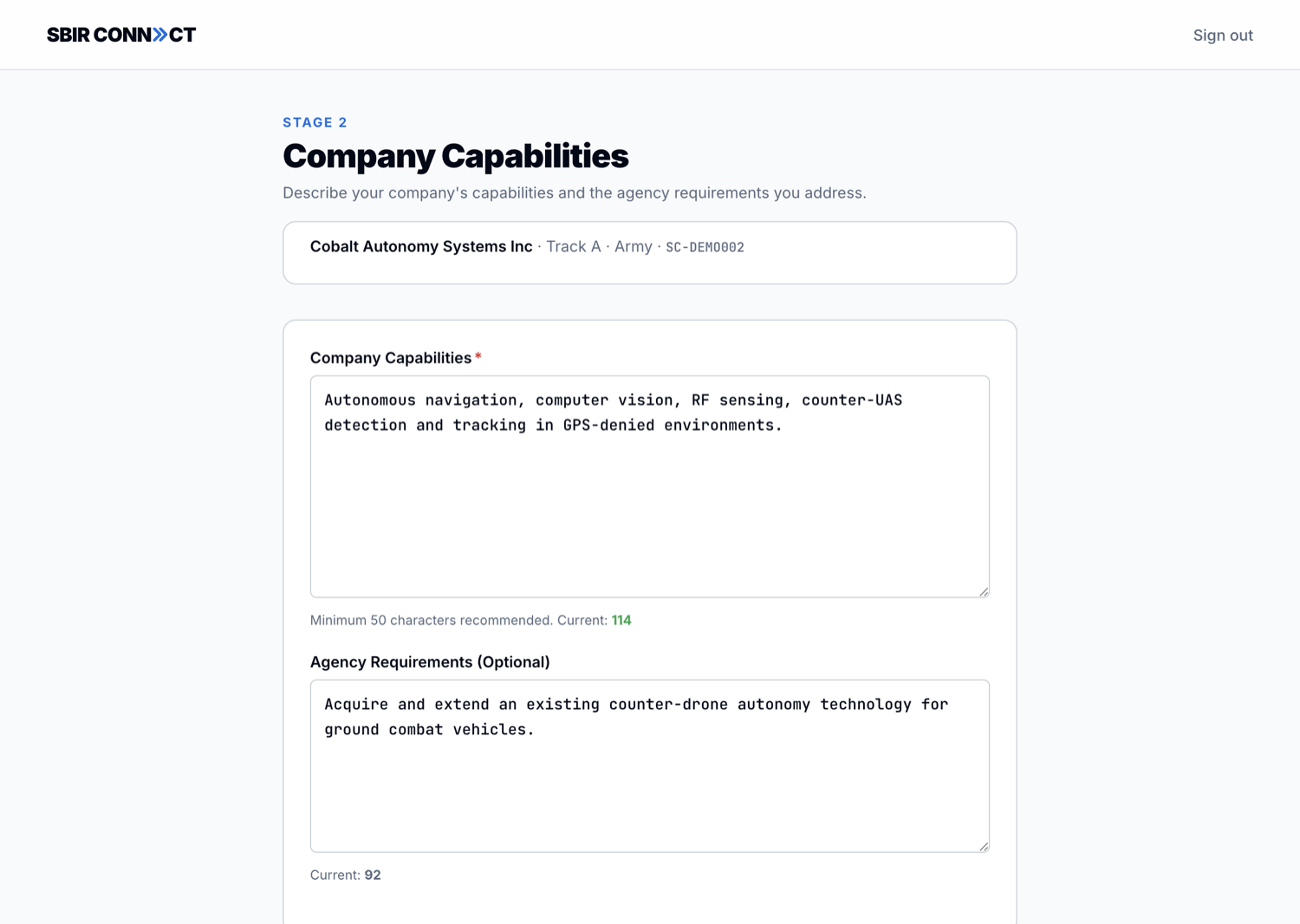
Two free-text fields feed the matching engine: Company Capabilities (what the customer brings — technology, federal experience, certifications) and Agency Requirements (what they're trying to acquire or satisfy). The capabilities field has a 50-character minimum recommendation with a live character counter.
sbir.porb.dev/stage2/intake?intake_id=...
Stage 2A with a real intake loaded. The pill at the top shows the intake's company, track, agency, and ref ID; the textareas drive the matching engine.
Stage 2B — Match Engine (/stage2/match?intake_id=...).
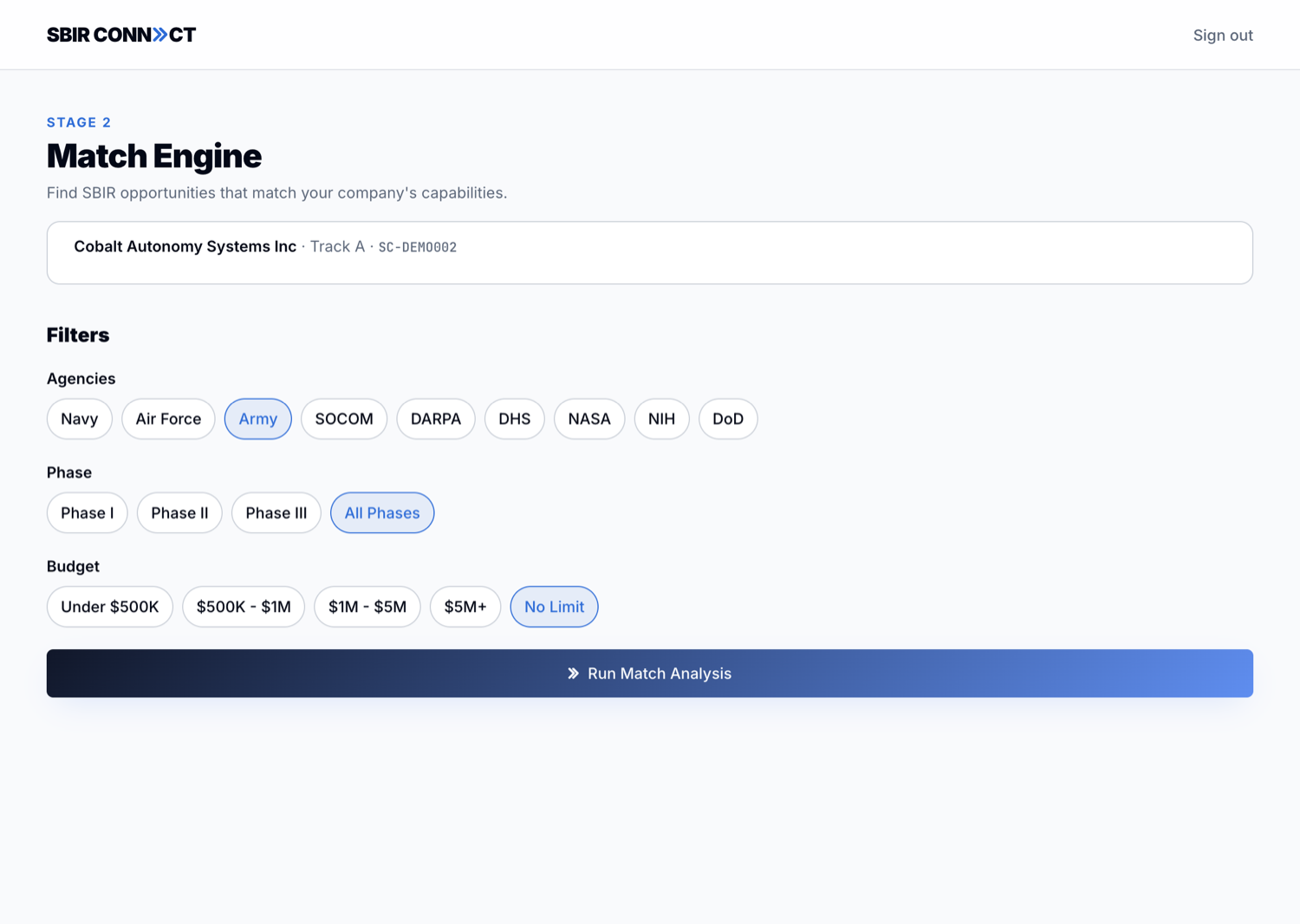
Filter chips (Agency / Phase / Budget) refine the candidate pool, then "Run Match Analysis" fires the matching engine. The agency pre-selects to whatever the intake declared (Army, in the example), and Phase defaults to "All Phases". The customer sees the matching engine's output as anonymized match cards; brokers see the same output un-anonymized via the admin pipeline.
sbir.porb.dev/stage2/match?intake_id=...
Stage 2B with the intake's agency (Army) pre-selected. The chip-based filter UX maps each filter group to a single horizontal row.
Stage 3 — White Paper Generator (/stage3?intake_id=...).
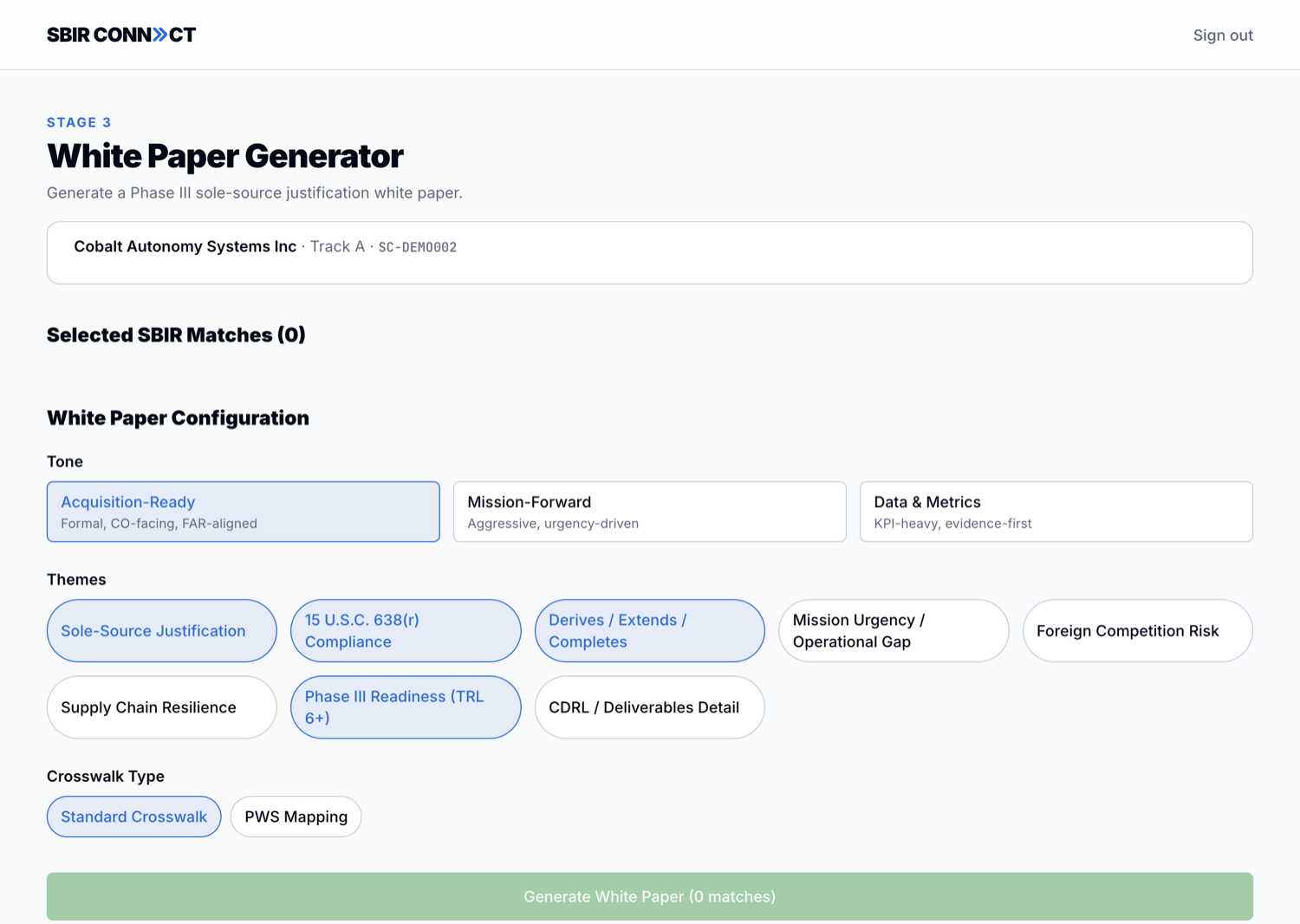
The AI-powered drafter that turns matched listings into a Phase III sole-source justification white paper. The customer (or broker) picks a tone (Acquisition-Ready / Mission-Forward / Data & Metrics), one or more themes (Sole-Source Justification, 15 U.S.C. 638(r) Compliance, Derives/Extends/Completes, Mission Urgency, Foreign Competition Risk, Supply Chain Resilience, Phase III Readiness, CDRL/Deliverables), and a crosswalk type (Standard or PWS Mapping). Generates a DOCX export.
sbir.porb.dev/stage3?intake_id=...
Stage 3 with the intake context loaded. The "Generate White Paper" button activates once at least one match has been carried over from Stage 2B.
Wait for broker introduction.
The intake now lives in Bill & Ted's pipeline. They review the matches, decide which to introduce, and reach out to the seller side directly. The customer sees status updates on their portal — see Currently in development for the portal status.
Track B — commercializer flow
A Track B customer holds one or more SBIR awards and wants to commercialize the resulting tech into the federal market. In practice this means either matching with a Track A buyer for sale/license or finding a federal pull-through partner. The intake flow is the same shape as Track A's Stage 1 → Stage 2A → Stage 2B, but the post-submit behavior differs.
Sign up and submit an intake.
Same starting point: invitation, login, portal, "+ New intake". The commercializer picks their company (federal-verified, so the system can already see their SBIR history), selects Track B at Stage 1, and at Stage 2A describes the technology they want to commercialize plus the federal opportunity they're targeting.
The system auto-creates a draft listing.
On submit, the platform automatically inserts a new sbir_topics row with source='marketplace', listing_status='draft', and pre-fills title ("[Draft] Phase III opportunity from <company name>"), agency, abstract from the capability text, and seller info. This is the broker's heads-up that a new commercializer has self-served onto the marketplace inventory.
Broker reviews and publishes.
The draft listing appears in /admin/listings with the draft badge. Broker opens it, edits anything that needs polishing (title, abstract, data rights, asking price), and flips it to active. From this moment forward, incoming Track A intakes consider this listing as a match candidate.
Seller appears as a counterparty in matches.
When a Track A buyer matches against this Track B intake (separate from the auto-created listing — the matching engine also considers active Track B intakes directly), a marketplace_deals row is created. Broker manages from /admin/deals.
Customer-portal visibility (limited today).
The customer portal shows the commercializer their intake status. Surfacing additional listing lifecycle signals ("your listing was published", anonymized buyer interest) is tracked under Currently in development. For now, the broker keeps the seller informed manually.
Why auto-create as draft
Seller-submitted intakes often have rough capability text, optimistic asking prices, or undersized abstracts. The draft status is the broker's checkpoint — nothing goes onto the live marketplace until they've reviewed and approved. The platform is built around the broker as the authority.
The customer portal
The portal is the customer-facing side of the application, living under /portal/*. It lets Track A and Track B customers see the status of their own intakes and view anonymized broker-mediated matches. It is live and verified end-to-end: per-customer data isolation is enforced at the database and confirmed against the running API (a customer reads only their own intake and zero broker CRM). The pages are:
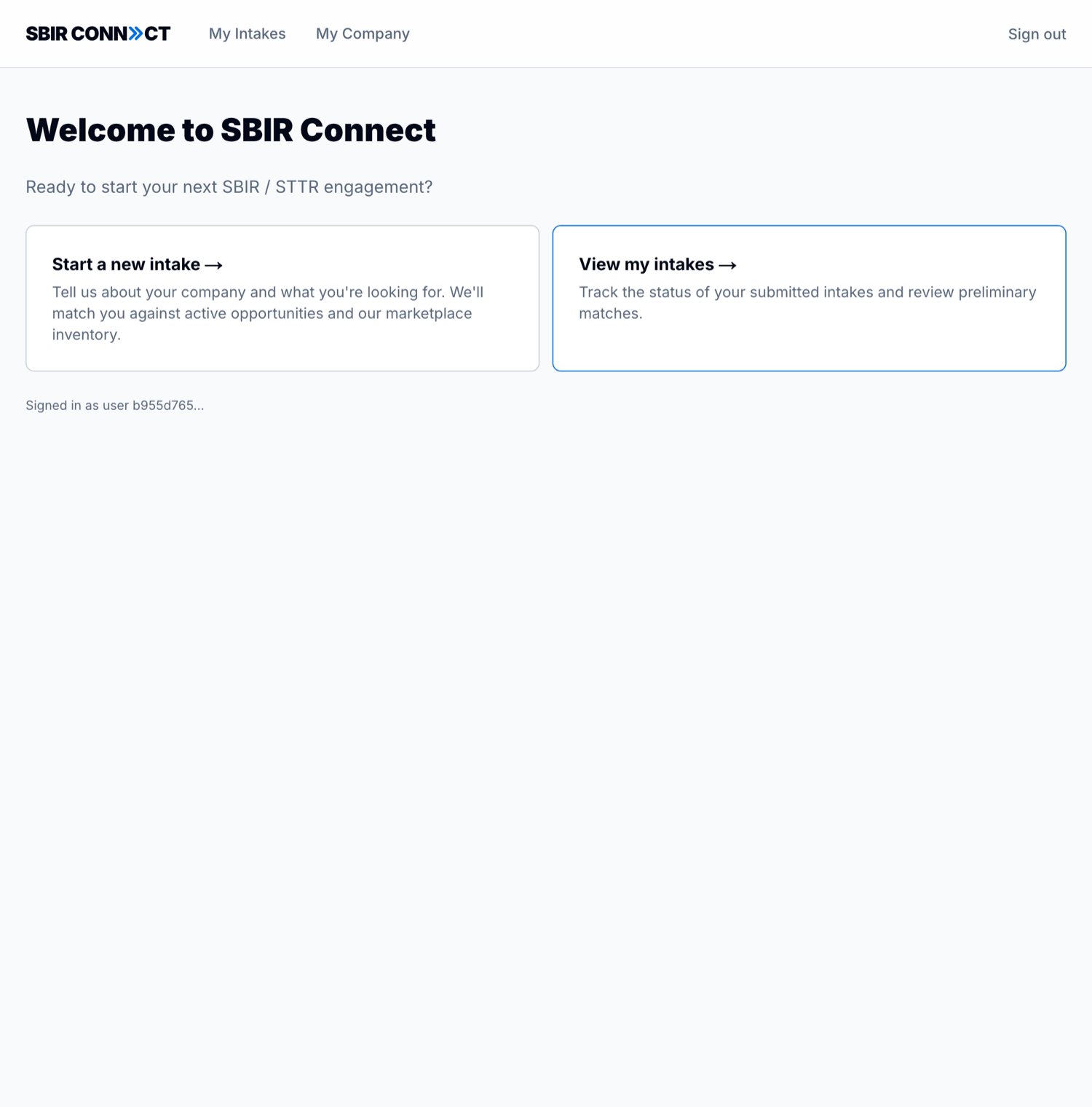
/portal — Customer landing with two CTAs (start a new intake, view existing intakes).
/portal/intakes — List of intakes that belong to the current customer.
/portal/intakes/new — Customer self-serve intake form (see below).
/portal/intakes/[ref_id] — Detail page for a single intake, showing the intake summary and anonymized match cards.
/portal/profile — The customer's own profile and account settings.
sbir.porb.dev/portal · signed in as a customer
The customer portal landing. The nav is deliberately minimal — My Intakes and My Company only; no CRM, listings, deals, or other-customer surfaces exist here.
How an intake reaches a customer
Each intake carries a client_user_id — the customer it belongs to. The portal and the database both filter on it, so a customer sees only their own intakes. An intake gets that owner in one of two ways:
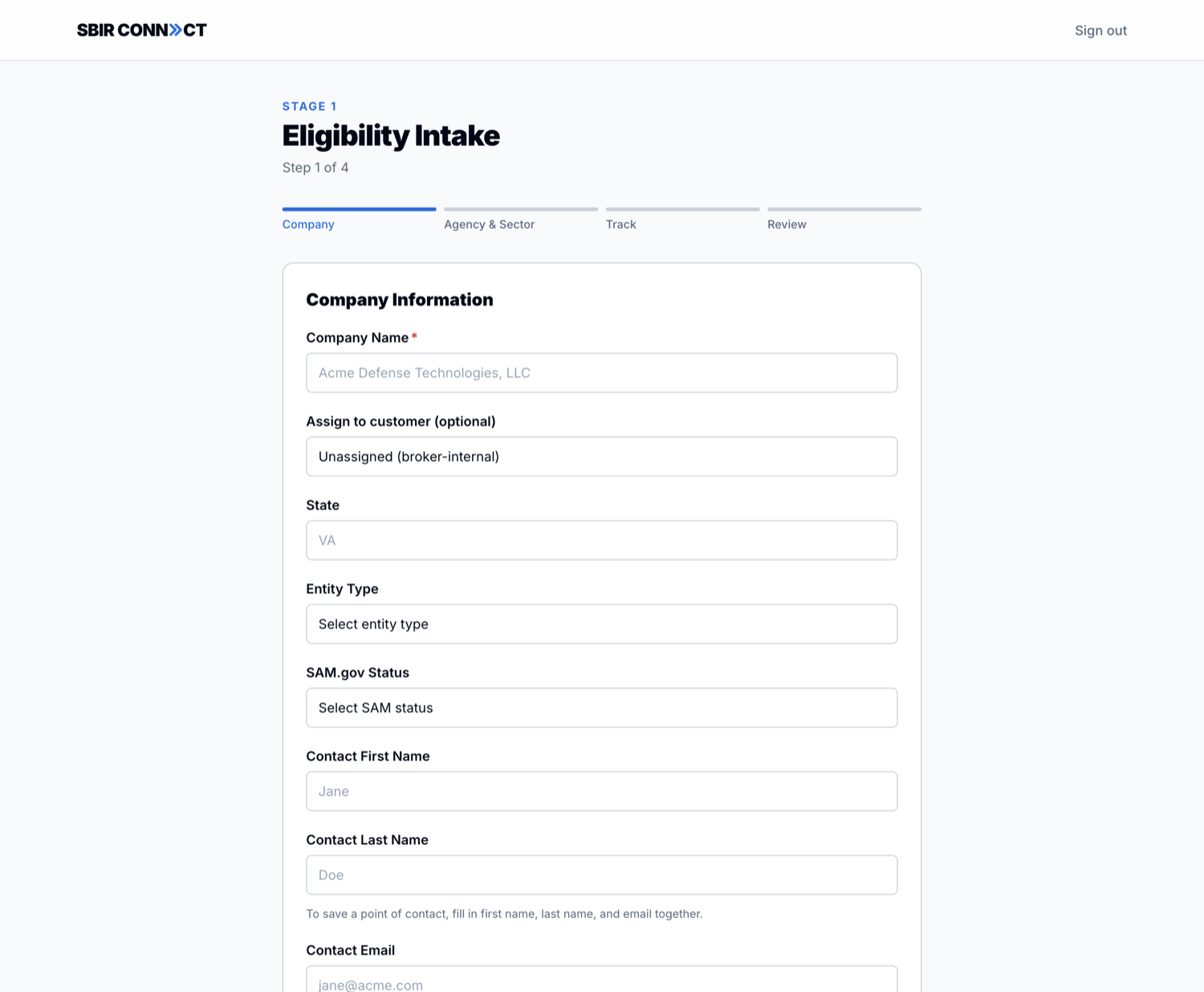
Broker-assigned. When Bill or Ted create an intake in Stage 1, an optional “Assign to customer” selector lets them attach it to a customer account. Left unassigned, the intake stays broker-internal (operators only).
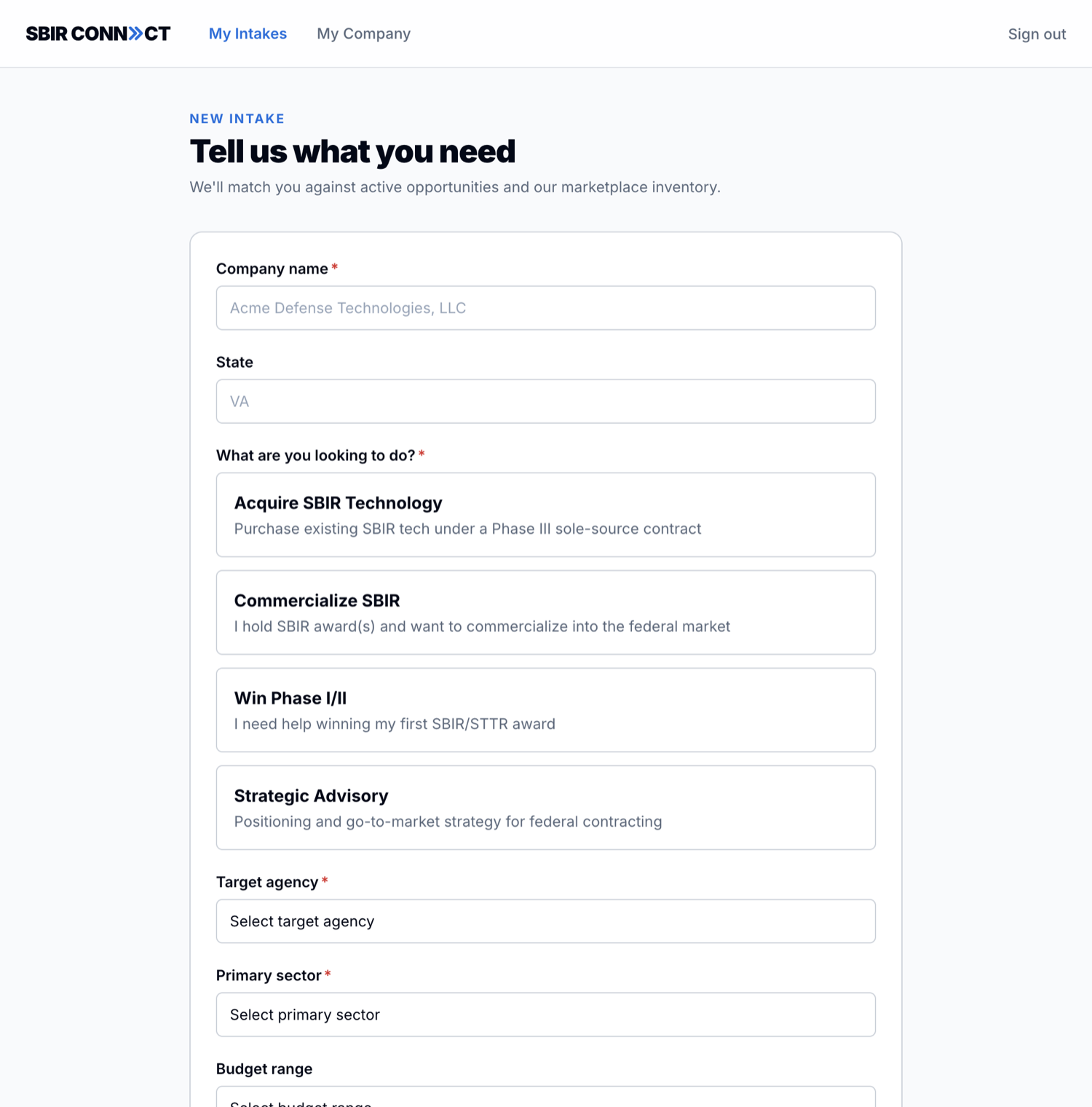
Customer self-serve. A signed-in customer fills out /portal/intakes/new (company, track, target agency, sector, what they need). The intake is created owned by them automatically — they never touch the broker's Stage 1 flow.
sbir.porb.dev/stage1
Stage 1, Company step. The “Assign to customer” dropdown (operators only) attaches the intake to a customer account so it appears in that customer's portal. Left as Unassigned (broker-internal), the intake stays visible to operators only.
sbir.porb.dev/portal/intakes/new
The customer self-serve form. A signed-in customer describes their company and what they need (track, target agency, sector); the intake is created owned by them automatically.
sbir.porb.dev/portal/intakes
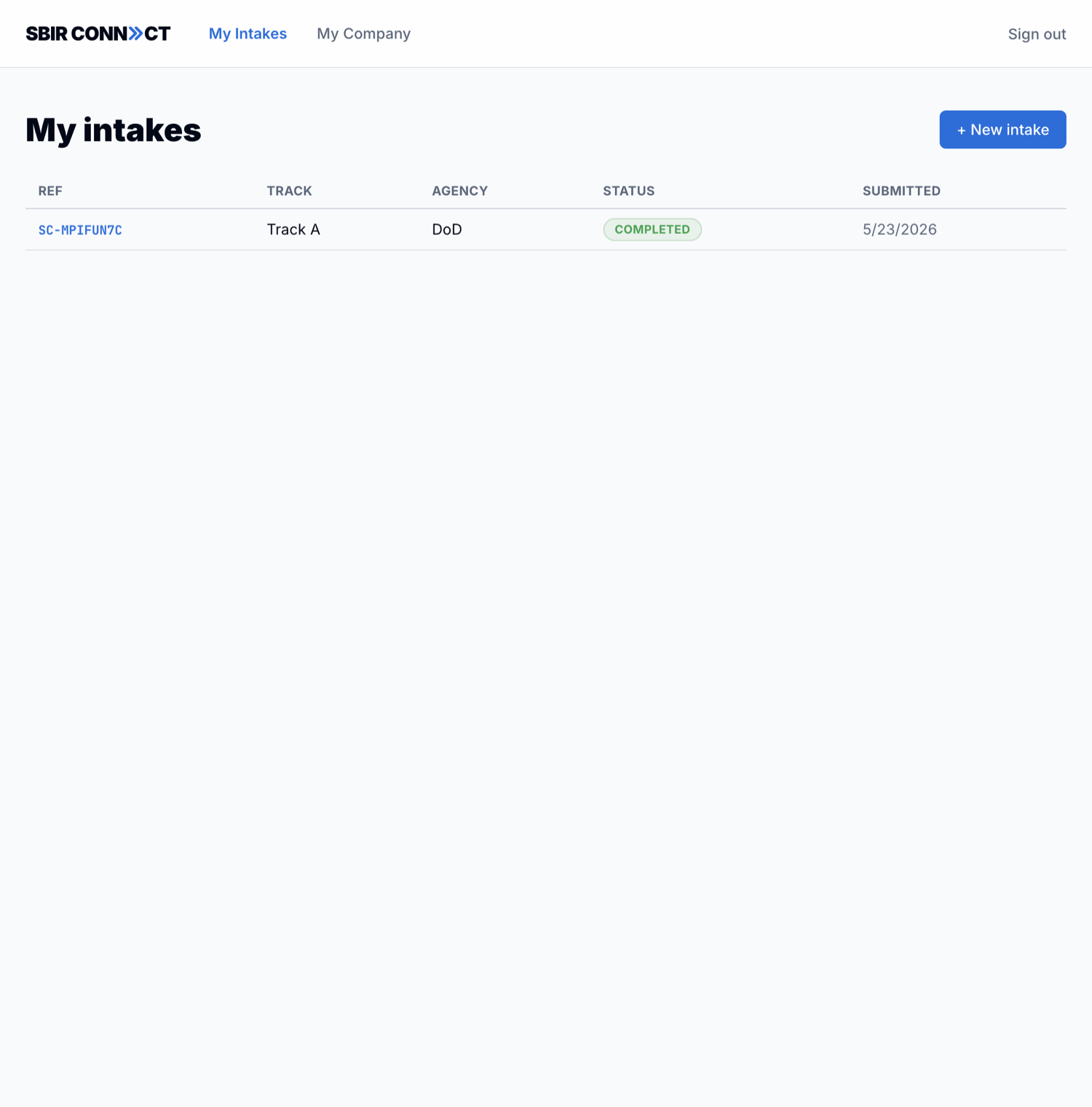
“My intakes” — the customer sees only the intakes that belong to them (ref, track, agency, status, date). Clicking a ref opens the detail page with anonymized matches.
There is no CRM access, no deal-flow management, and no other-customer visibility from the portal. Customers see exclusively their own work. This is enforced by row-level security (migrations 018 & 019), not just by the UI — see What customers do & don't see.
What customers do & don't see
This is the most important section of the guide for explaining the broker's value proposition. The platform enforces a strict separation between what customers can see and what brokers can see. This separation is fully implemented and verified live against the running API: a customer reads only the intakes they own and sees zero broker CRM, while operators see everything on the tenant.
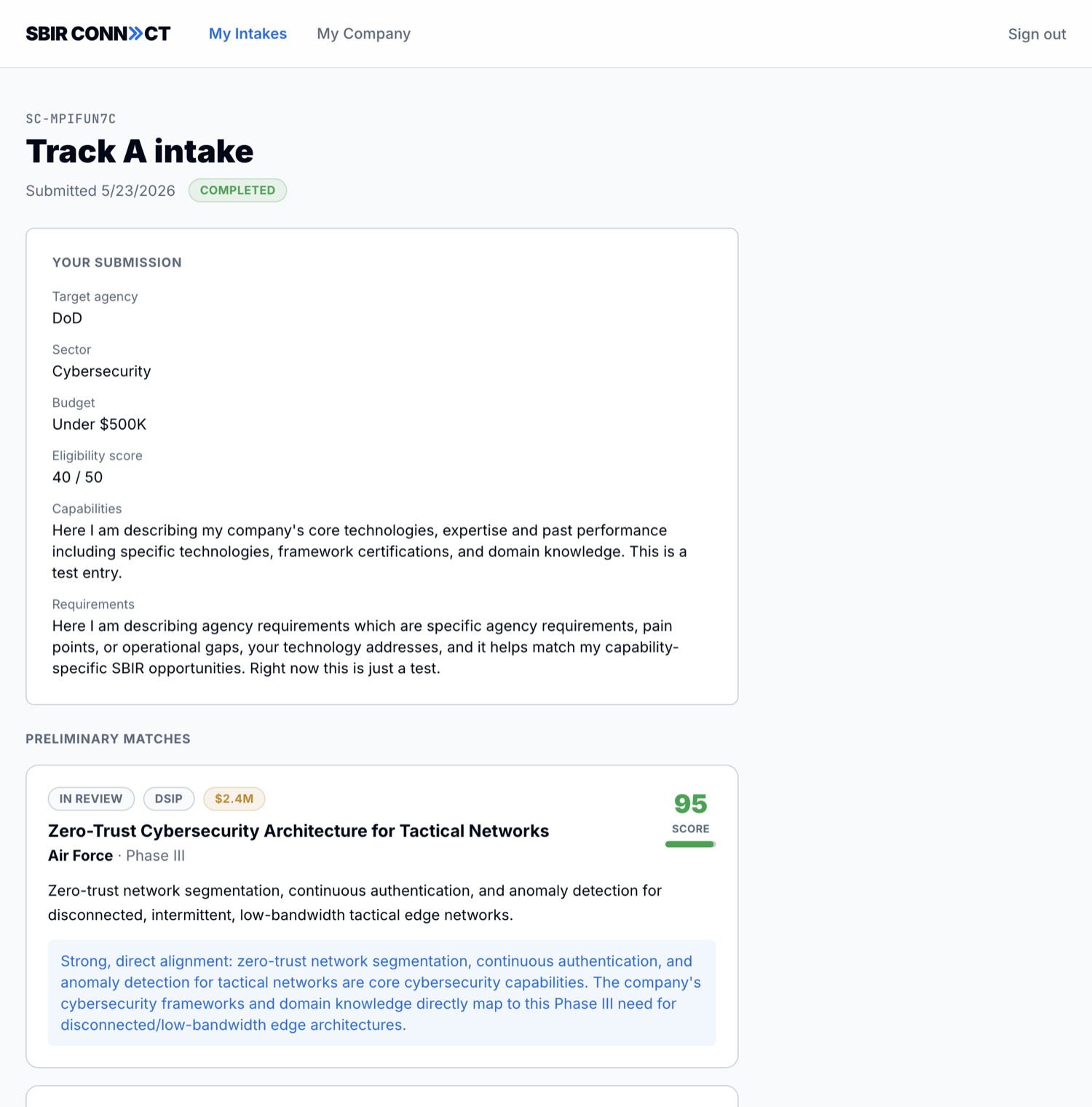
sbir.porb.dev/portal/intakes/… · the customer's view
The customer's view of a matched intake. They see the match title, agency, phase, a match score, and a scrubbed justification — but never the counterparty company name, contract number, or PI contact. Compare with the broker's full-disclosure view of the same match.
Field
Broker sees
Customer sees
Match title
✓
✓ (broker controls the text)
Agency + phase
✓
✓
Award amount
✓
✓
Match score
✓
✓
Verified-by-federal flag
✓
✓
300-char abstract excerpt
✓ (full)
✓ (excerpt)
Counterparty company name (recipient_name)
✓
✗
Contract award number
✓
✗
PI name / email / phone
✓
✗
Broker notes
✓
✗
Deal status
✓ (6 statuses)
Simplified to 3: in_review / introduced / closed
Other customers' intakes / deals
✓
✗
Justification text (AI / templated)
✓ (full)
Anonymizer-scrubbed (recipient name redacted)
How anonymization is enforced
Three independent layers:
Postgres Row-Level Security (RLS). Customers and brokers share one operator tenant, but role-aware policies (migrations 018 & 019) keep them apart at the database. A client can only SELECT the intakes they own (by client_user_id) plus the matches, deals, and white-papers derived from them; the broker CRM (companies, contacts, notes), uploads, and telemetry are operator-only. Even if the API misbehaved, the DB would refuse to return another customer's rows or any CRM data.
API anonymization at the response boundary. The /api/match GET handler checks ctx.role. For client, every match passes through anonymizeMatch() which constructs a new object containing only the safe fields. The counterparty fields aren't filtered out — they never make it into the response shape in the first place.
Justification text scrubbing. Templated and AI-generated match justifications can mention company names ("Strong fit with Acme Defense's Phase II work"). The anonymizer does two passes: first, a case-insensitive replace of the known counterparty recipient_name; second, a regex that catches residual ALL-CAPS multi-word patterns. The result is "[counterparty]" wherever a company name would have appeared.
Privacy invariant
If a customer ever sees a counterparty company name, contract number, or PI email on their portal, that is a bug to escalate immediately. The system is built to make this impossible by design, not by discipline.
Status reference
Listing statuses (sbir_topics.listing_status)
Status
Meaning
Visible to matching engine?
draft
Work in progress. Not published.
No
active
Published; available for new matches.
Yes
paused
Hidden from new matches; preserved for existing deals.
Hidden but preserved
sold
A deal closed; historical record.
No
withdrawn
Soft-deleted (admin only).
No
Deal statuses (marketplace_deals.status)
Status
Meaning
Customer-facing label
reviewed
Match created; broker hasn't acted yet.
In review
introduced
Broker made the introduction. introduced_at stamped.
Three federal data integrations power the platform. None of them require Bill & Ted to do anything manually — they refresh on schedules — but it's useful to know where the data comes from.
SAM.gov Entity Management API
Queried in real time whenever a user types into the company combobox. Authenticated with an API key stored server-side (never sent to the browser). Provides verified federal vendor metadata: UEI, CAGE, DUNS, NAICS codes, registration status, address.
USASpending.gov API
Queried in real time alongside SAM during combobox autocomplete. Provides federal contract spending history by recipient, which the platform uses to compute the "Federal $" KPI on company records.
SBIR.gov bulk awards CSV
Downloaded by an automated cron sidecar on the 1st and 15th of every month at 06:00 UTC. The script:
Downloads the latest award_data_no_abstract.csv (~50MB, ~219,500 rows).
TRUNCATEs the sbir_awards table.
Bulk-inserts every row, including the Principal Investigator fields (name, title, phone, email).
Runs the post-ingest contact-link batch — joins SBIR PI emails against the CRM contacts table and materializes contact_sbir_pi_links for any exact email match.
The TRUNCATE is destructive but recoverable — the CSV is authoritative. The CASCADE wipes related tables (dormant_inventory_candidates, contact_sbir_pi_links) because they reference sbir_awards(id) by foreign key. Both come back populated by the post-ingest steps; dormant_inventory_candidates, however, loses any broker-entered notes. This is a known cleanup item — when brokers start logging serious notes there, the platform will move to an idempotent merge.
Glossary
Track A — Acquire SBIR Technology
A buyer-side intake. The customer wants to purchase existing SBIR tech under a Phase III sole-source contract. Feeds the matching engine.
Track B — Commercialize SBIR
A supply-side intake. The customer has SBIR award(s) and wants to commercialize into the federal market. Auto-creates a draft marketplace listing on submit; also appears as a counterparty candidate for Track A matches.
Track C — Win Phase I/II
An advisory intake. The customer needs help winning their first SBIR/STTR award. Standalone consulting engagement; doesn't feed the matching engine.
Track D — Strategic Advisory
An advisory intake. The customer needs positioning and go-to-market strategy for federal contracting. Standalone consulting engagement; doesn't feed the matching engine.
UEI
Unique Entity Identifier. The 12-character alphanumeric ID the U.S. federal government uses to track every registered vendor. Replaced DUNS in 2022.
DUNS
The Dun & Bradstreet identifier. Legacy; partially deprecated in favor of UEI but still appears in historical SBIR data.
CAGE code
Commercial and Government Entity code. 5-character ID assigned by DLA for federal contracting.
SBIR / STTR
Small Business Innovation Research / Small Business Technology Transfer. Federal R&D programs that fund early-stage technology development at small businesses. Phase I = feasibility, Phase II = prototype, Phase III = commercialization (no SBIR funding, but uses Phase I/II as the technical baseline).
Recipient name
The company that received an SBIR award. In the brokerage context, the recipient is the counterparty — what we anonymize away from the customer's view.
Counterparty
The other party in a deal. Customers see the placeholder text "[counterparty]" wherever the counterparty's identity would appear in match summaries.
PI (Principal Investigator)
The named technical lead on a SBIR award. Captured in the SBIR.gov bulk data as PI name, title, phone, and email.
Marketplace listing
A piece of SBIR-certified technology for sale. Lives in sbir_topics with source='marketplace'.
Intake
A customer's structured request for help — either Track A or Track B. Triggers the matching engine and lives in the broker pipeline.
Match
A pairing between an intake and a candidate (marketplace listing or counterparty intake) produced by the matching engine. Has a score, a justification, and a verified-by-federal flag.
Deal
A tracked match the broker is actively working. Has a status, broker notes, and an audit trail.
Dormant SBIR
A Phase I or Phase II SBIR award whose contract ended 10+ years ago and whose recipient has done no federal work in the last 5 years. Prospecting target. The contract itself is the asset Bill & Ted acquire; a new owner can commercialize directly to Phase III on the bought contract regardless of what stage the original development stopped at.
Verified by Federal
A match badge indicating the platform cross-checked the candidate's claimed SBIR history against the SBIR.gov bulk awards data and confirmed it.
Tenant
The data partition for a single brokerage firm. Today, one tenant = the Bill & Ted brokerage; customers exist as additional tenants.
Operational notes
Where the app lives
Production URL: sbir.porb.dev (served by Caddy on the porb-dev tailnet-only server). Container stack: sbir-connect-app (the Next.js app) + sbir-ingest-cron (the biweekly SBIR awards refresh sidecar) + the self-hosted Supabase Postgres stack.
Refresh schedules
SBIR awards CSV ingest: 1st and 15th of every month at 06:00 UTC. Refreshes all ~219,500 awards from sbir.gov, repopulates PI columns, runs the PI ↔ contact link batch.
SAM / USASpending: Queried live during combobox autocomplete; no scheduled refresh needed. Stale data is impossible because every query hits the federal source.
Marketplace listings scrape: Not yet automated. Ted's site (thesbirtechmarketplace.com) is a single-page app that requires browser-based scraping. Today we have 5 of his ~487 listings synced; the remaining 482 require either a CSV export from Ted's admin panel, the anon key from his Supabase project, or a browser-harness scrape. Highest-leverage operational task in the backlog.
Backup & recovery
The Supabase Postgres stack on porb-dev backs up nightly to local snapshots. The application code is in Git; redeploying from main rebuilds the container in ~90 seconds. Federal data is recoverable from source (re-run the ingest); broker-entered data (CRM, deal notes, dormant inventory notes) is the only data without an upstream source — protect the Postgres snapshots.
Common operational tasks
Trigger a manual ingest:ssh porb-dev "docker exec sbir-ingest-cron /opt/ingest-sbir-awards.sh"
Redeploy after a code push:ssh porb-dev "cd /root/sbir-connect-platform && git pull && bash scripts/deploy.sh"
Check app health:curl https://sbir.porb.dev/api/health — returns 200 if alive.
View live logs:ssh porb-dev "docker logs -f sbir-connect-app"
Currently in development
This section lists everything that is built-but-not-yet-validated, in-flight, or being actively fixed. It does NOT include speculative future work. Items move out of this section into the main body of the guide as they get captured / verified / shipped.
Recently shipped
The customer portal is now live with provisioned customer accounts and per-customer data isolation verified end-to-end (migrations 018 & 019) — see The customer portal. Also shipped: customer self-serve intakes (/portal/intakes/new), the broker “assign to customer” selector in Stage 1, and the read-only viewer role (Roles & access).
Cleanup items in flight
Legacy listing data. Five marketplace rows that pre-date Wave 3 have listed_at = NULL because migration 014's backfill only set listing_status. A one-line UPDATE will set listed_at = created_at for those rows.
CRM company-link in the listing form. Today recipient_name on the new-listing form is a plain text input. It should be replaced with the CompanyCombobox bound to seller_company_id (column already in schema, POST API already accepts it) so listings auto-link to CRM companies.
Regenerate button on the outreach modal. The AI outreach draft generates once when the modal opens; if the broker doesn't like the draft they have to close + reopen to retry. A dedicated "Regenerate" button is a one-component change.
Track B counterparty matches on the customer portal. A Track A buyer matched against a Track B intake (instead of a marketplace listing) creates a deal row, but the seller's portal currently doesn't surface this. UX decision needed on what the Track B seller sees when their intake is matched.
Cosmetic cleanup. Dead transition label in DealStatusTransitions (the reviewed entry is unreachable); mapDealStatus default case returns the semantically-wrong "matched" status; broker dashboard placeholder copy still says "Real broker home lands in Wave 5".
Marketplace listings backfill. Ted's site has roughly 487 listings; today we have 5 in the DB. Path to populate: ask Ted for a CSV export (fastest), share his Supabase anon key, or run a browser-based scrape. Highest-leverage operational task remaining.
Test data still visible
The marketplace listings table currently shows integration-test fixture rows (Route Test Dormant Tech, deals-route-test — fixture listing) generated by the Wave 4/5 test suite. These should be cleaned out before Bill & Ted see the listings page in a customer demo.